> ## Documentation Index
> Fetch the complete documentation index at: https://io.net/docs/llms.txt
> Use this file to discover all available pages before exploring further.
# Training as a Service (TaaS)
> Customize and fine-tune models to fit your needs - no need to train from scratch.
Note: This feature is currently in Beta. We are actively refining the experience and would love to hear your feedback.
With IO Intelligence’s [Training as a Service (TaaS)](https://ai.io.net/ai/training), you can fine-tune powerful pre-trained models using your own data—achieving tailored performance without the complexity of training from scratch.
Built for builders, researchers, developers, and businesses, TaaS gives you greater control over how your AI learns and adapts. With support for advanced techniques such as PPO, DPO, and reward modeling, you can move beyond traditional fine-tuning and experiment at the cutting edge of machine learning.
## Getting Started
To begin training your model:
* **Go to your** io.net Dashboard.
* Navigate to [**Training**](https://ai.io.net/ai/training) under the **IO Intelligence** section.
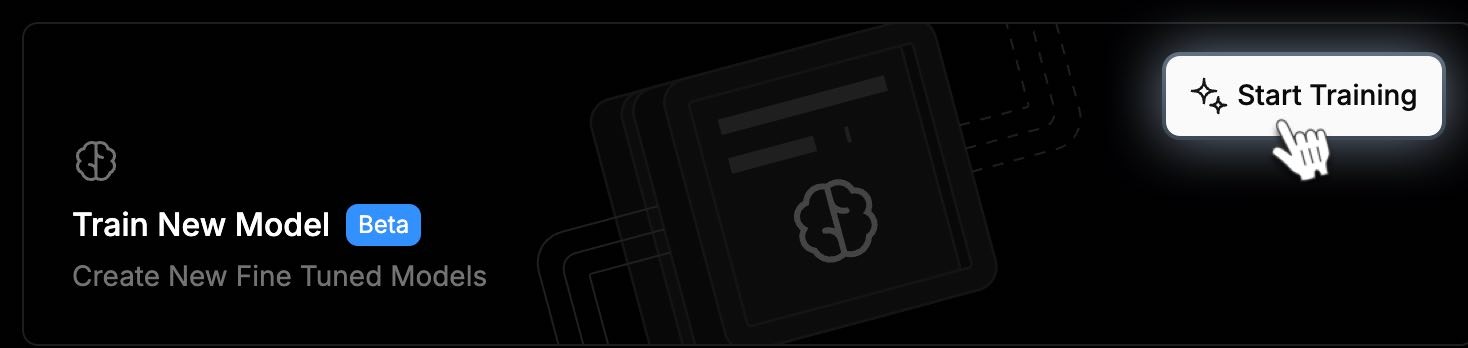
* Click the **Start Training** button to launch the setup form.
io.net does not support training models from scratch. All training is done via fine-tuning or customization of existing models.
## Build Your Training Workflow
The *Training Model* form is designed to guide you through the setup process, step by step.
### 1. Select a Training Method
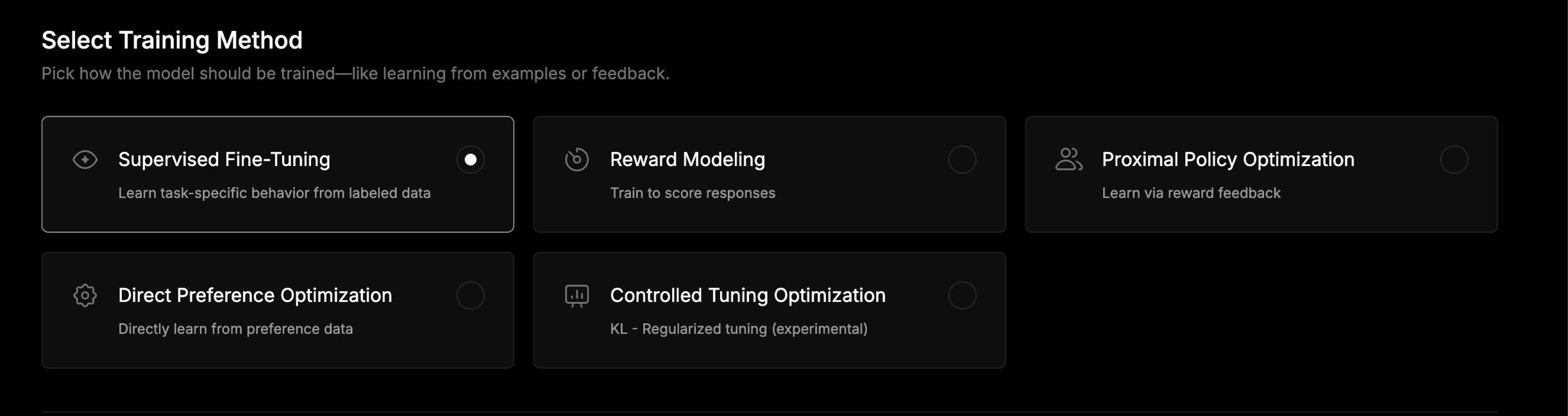
Pick how your model should learn. You can choose from a variety of advanced methods:
* **Supervised Fine-Tuning**: Teach your model using labeled datasets for task-specific learning.
* **Reward Modeling:** Train your model to assign scores to generated responses.
* **Proximal Policy Optimization (PPO):** Use reinforcement learning with reward feedback.
* **Direct Preference Optimization (DPO):** Optimize the model directly using ranked preferences.
* **Controlled Tuning Optimization** *(Experimental):* Apply KL-regularized tuning for fine-grained control.
### 2. Select a Base Model
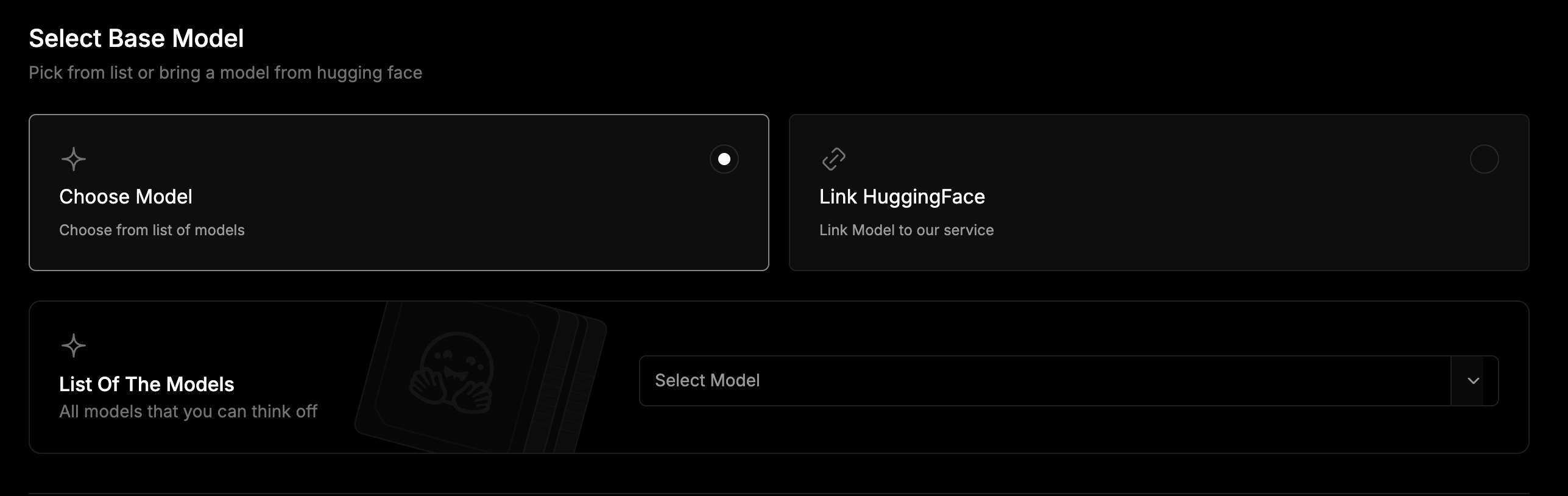
You can select a **pre-integrated** model from our library or bring your own model from **Hugging Face**.
Choose from our library of 561 open-source base models in the dropdown list, for example, LLaMA, Mistral, Falcon, GPT-Neo, and many more.
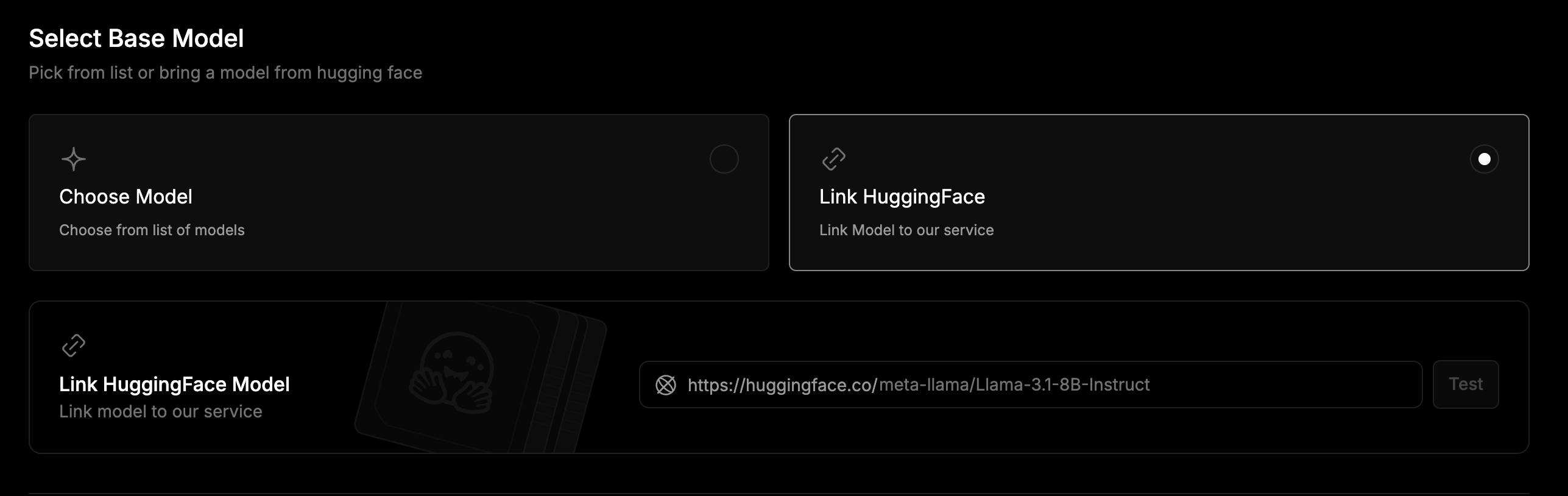
You can bring your own model from **Hugging Face** by following these steps:
1. Paste your Hugging Face model repository link in the field.
2. Click the **Test** button.
3. If the connection is successful, you will see: “*Successfully tested.*”
4. If the repository is **private** or **invalid**, a prompt will request your *Hugging Face Token* with the message: "*The repository is private or does not exist. Provide an HF Token".* For additional guidance, see [**How to get your Hugging Face Token**](https://huggingface.co/docs/hub/en/security-tokens).
### 3. Select a Dataset
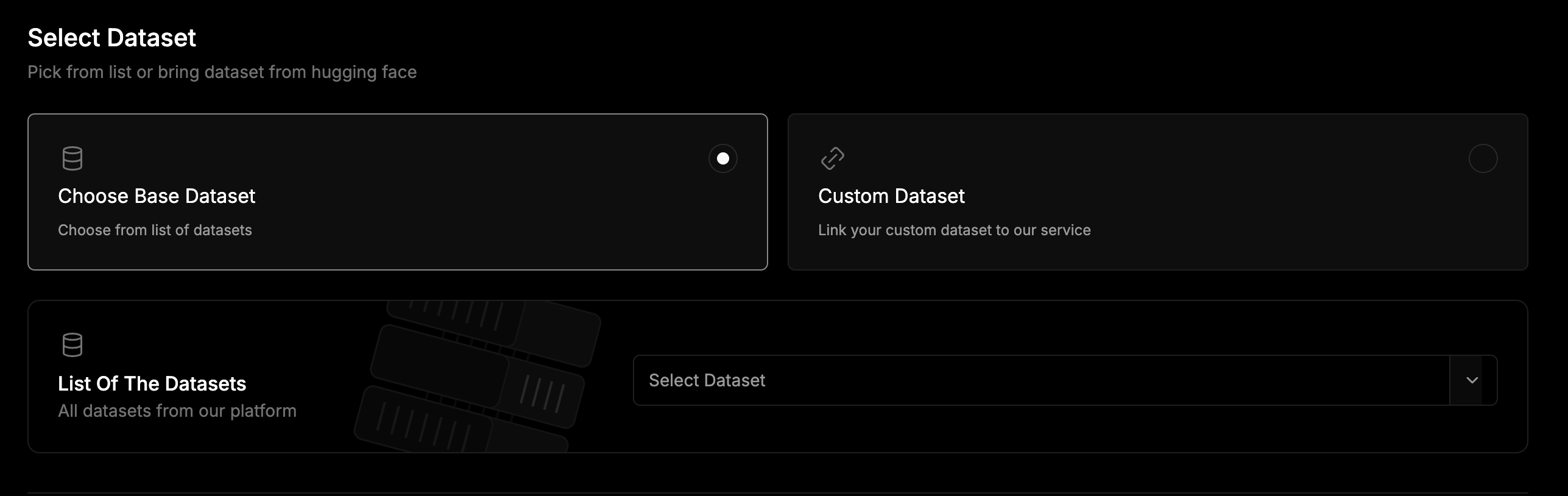
Choose training data from a **curated list** or bring your own custom dataset.
Select a dataset from our list using the dropdown menu.
Set up your dataset by completing the configuration fields.
Refer to the documentation link provided on top of the ***Configuration*** section for more details.
### 4. Choose a Training Style
Depending on your goal, you can select between **Simple Creating** and **Advanced Creating** when training a model.
Uses default settings for a quick and straightforward setup. Best if you want to get started fast without managing technical details.
Offers full flexibility and control. Select this option if your goal is to customize every aspect of how your model learns, from hyperparameters to optimization strategies.
For further technical documentation on each advanced configuration, refer to [Llama Factory](https://llamafactory.readthedocs.io/en/latest/).
### 5. Start Training
After setting up the details of your model, click **Start Training** to begin.
## Training Dashboard
The following sections can be viewed in the ***Training Dashboard***.
#### Your Current Plan
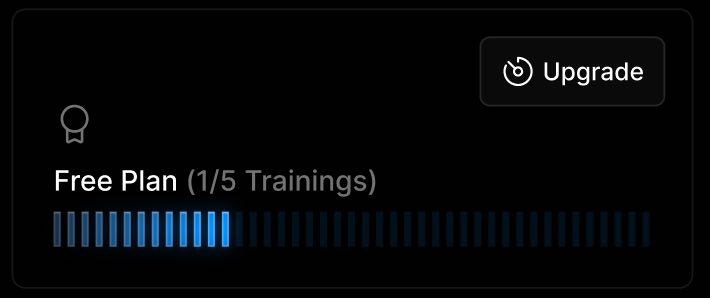
At the top of the page, you can view your current plan details. To increase your training runs or access faster processing, click the **Upgrade** button.
#### Your Training Jobs
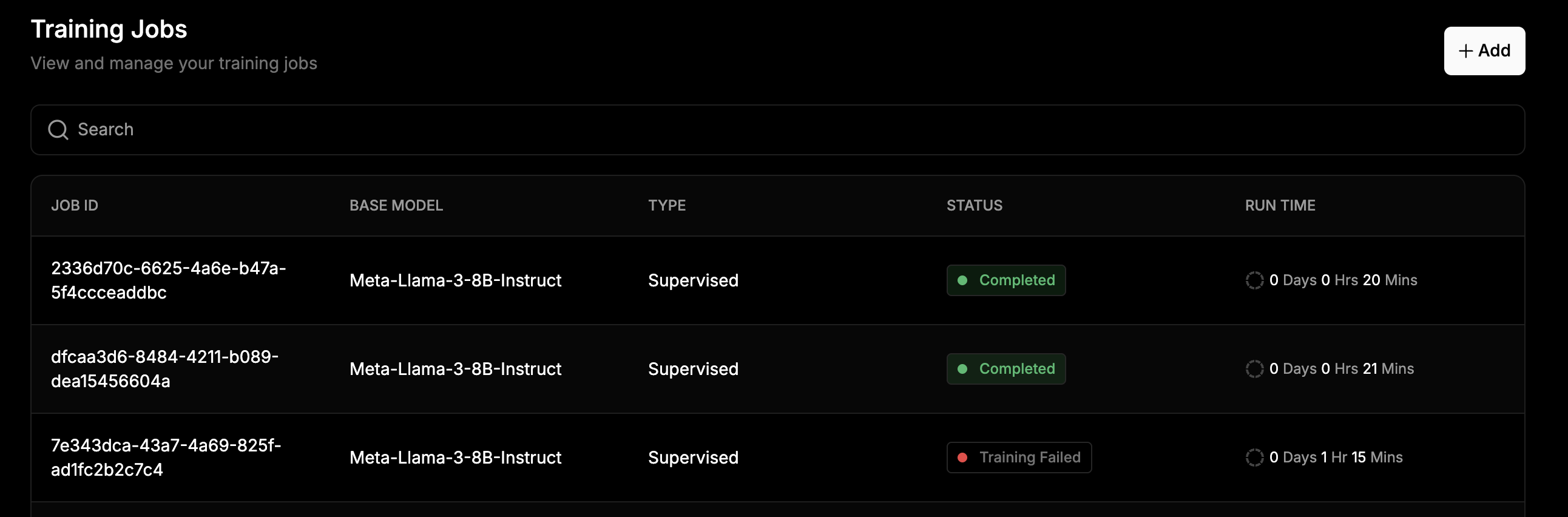
Below your plan, there is a **Training Jobs** table where you can view and manage all your model training requests. Each row shows key details such as, *Job ID*, *Base Model*, *Type*, *Status*, and *Run Time.*
Click on any job to open the detailed view and see how it is progressing.
## Job Details
Click on a job from the dashboard to open its ***Job Details***. This provides everything you need to track and manage your model training in real time.
At the top of the page are the following buttons and indicators:
* **Download Model** – Available once the job is complete, to download the final model.
* **Abort Training** – Manually stop the job if necessary.
* **Time Remaining** – Displays how much time is left for training to finish.
* **Time Passed** – Shows how long the job has been running.
### Training Metrics (Charts)
Track your model’s learning performance in real time.
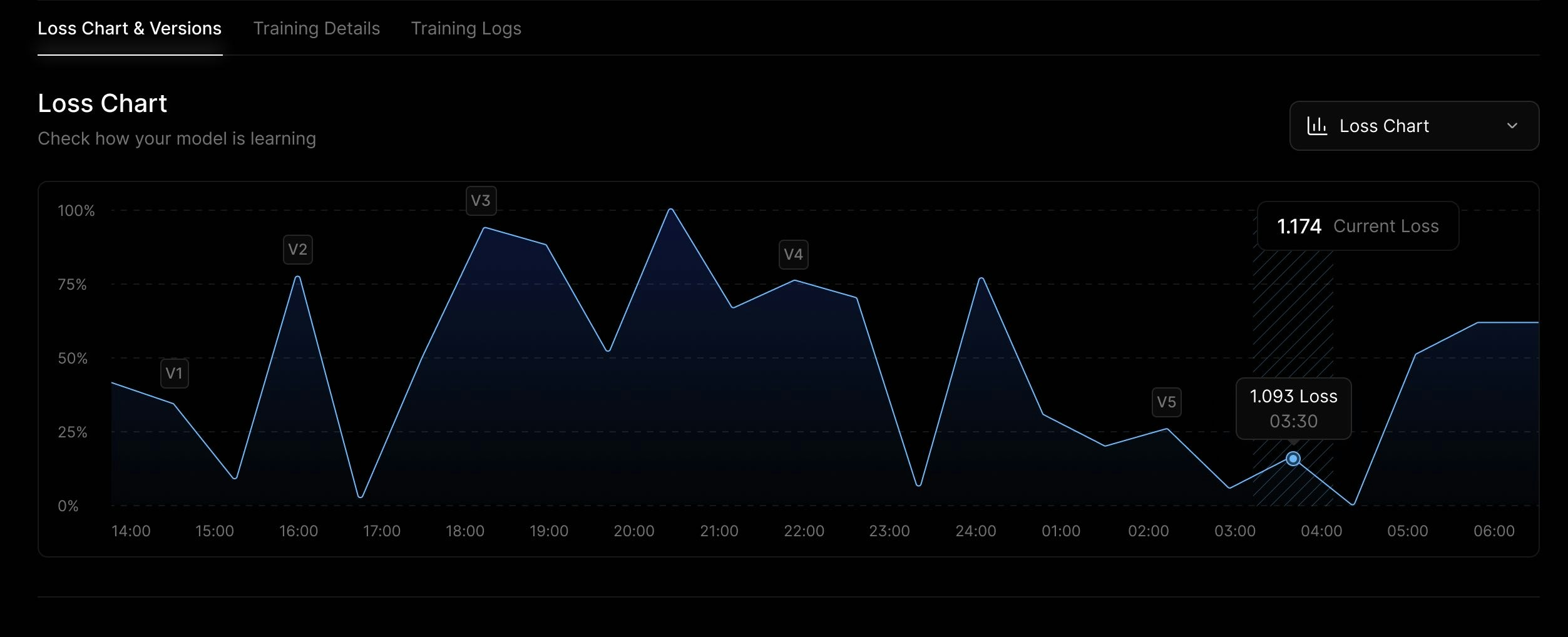
* **Loss Chart** – Shows how training loss decreases over time.
This visual tool allows you to understand if your model is learning effectively - or if it needs adjustments.
### Training Details
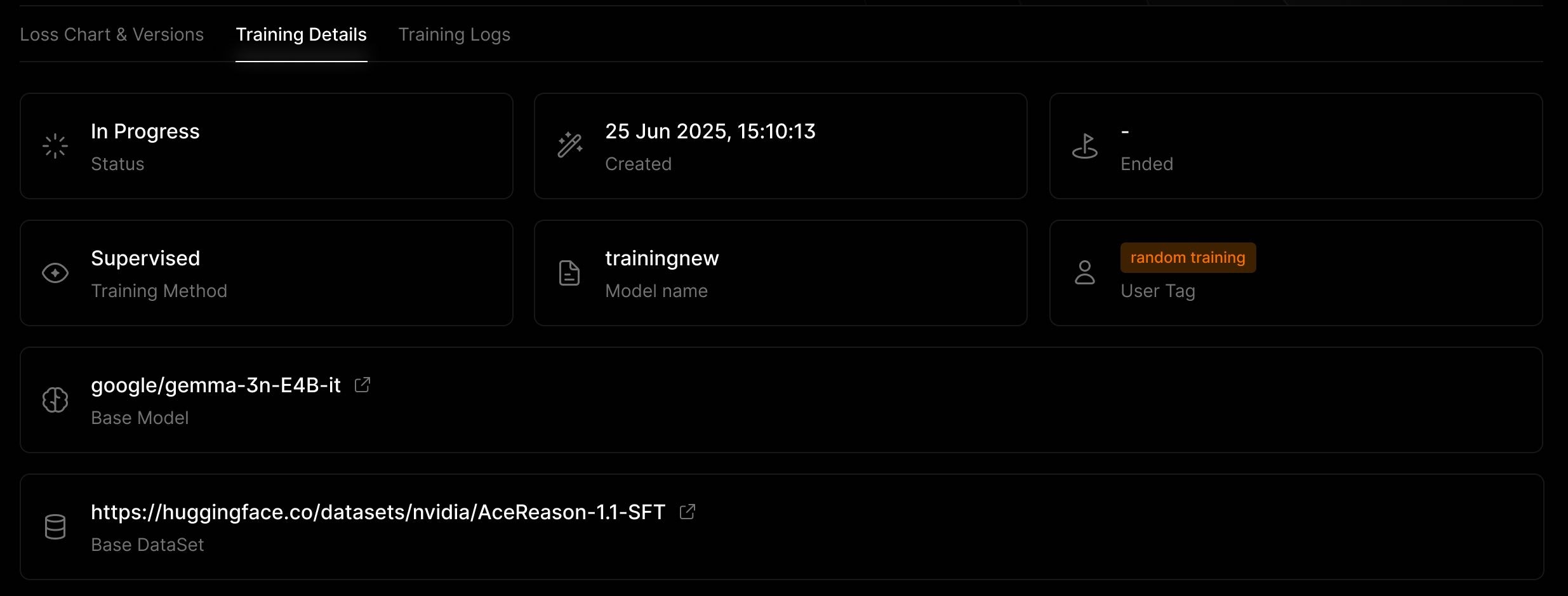
A summary of the key information for the training job is provided as follows:
* **Status** – Created, Deploying, Deploy Failed, Training Failed, Training, or Completed.
* **Date Created**
* **Model Name**
* **Training Method**
* **Base Model Used**
* **Dataset Used**
* **User Tag** - Custom label or identifier.
* **End Date** - If completed or aborted.
### Training Logs
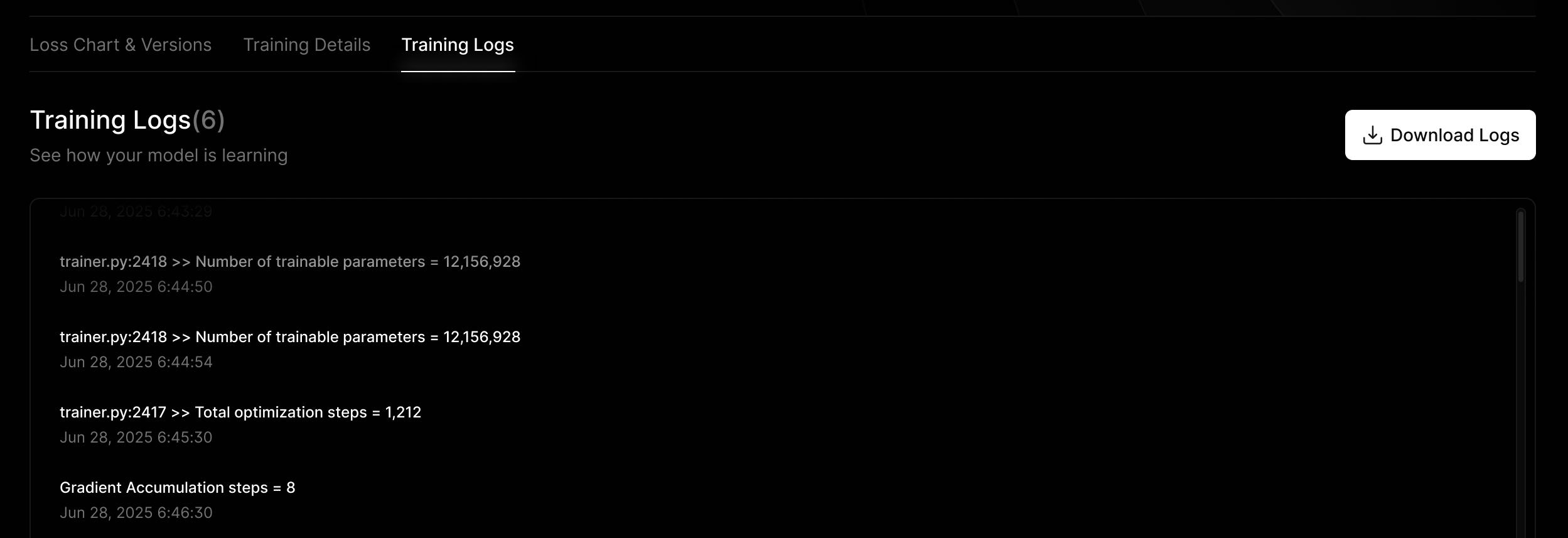
***Training Logs*** provide visibility into what occurs behind the scenes during the model training process. They contain a detailed list of steps, events, and status updates throughout the job’s lifecycle, making them especially useful for debugging, monitoring, or maintaining transparency.
Click the **Download Logs** button to save them locally for review or record-keeping.
 * Click the **Start Training** button to launch the setup form.
 ### 2. Select a Base Model
You can select a **pre-integrated** model from our library or bring your own model from **Hugging Face**.
### 2. Select a Base Model
You can select a **pre-integrated** model from our library or bring your own model from **Hugging Face**.



 #### Your Training Jobs
Below your plan, there is a **Training Jobs** table where you can view and manage all your model training requests. Each row shows key details such as, *Job ID*, *Base Model*, *Type*, *Status*, and *Run Time.*
Click on any job to open the detailed view and see how it is progressing.
#### Your Training Jobs
Below your plan, there is a **Training Jobs** table where you can view and manage all your model training requests. Each row shows key details such as, *Job ID*, *Base Model*, *Type*, *Status*, and *Run Time.*
Click on any job to open the detailed view and see how it is progressing.
 ## Job Details
Click on a job from the dashboard to open its ***Job Details***. This provides everything you need to track and manage your model training in real time.
At the top of the page are the following buttons and indicators:
* **Download Model** – Available once the job is complete, to download the final model.
* **Abort Training** – Manually stop the job if necessary.
* **Time Remaining** – Displays how much time is left for training to finish.
* **Time Passed** – Shows how long the job has been running.
## Job Details
Click on a job from the dashboard to open its ***Job Details***. This provides everything you need to track and manage your model training in real time.
At the top of the page are the following buttons and indicators:
* **Download Model** – Available once the job is complete, to download the final model.
* **Abort Training** – Manually stop the job if necessary.
* **Time Remaining** – Displays how much time is left for training to finish.
* **Time Passed** – Shows how long the job has been running.
 ### Training Metrics (Charts)
Track your model’s learning performance in real time.
* **Loss Chart** – Shows how training loss decreases over time.
This visual tool allows you to understand if your model is learning effectively - or if it needs adjustments.
### Training Metrics (Charts)
Track your model’s learning performance in real time.
* **Loss Chart** – Shows how training loss decreases over time.
This visual tool allows you to understand if your model is learning effectively - or if it needs adjustments.
 ### Training Details
A summary of the key information for the training job is provided as follows:
* **Status** – Created, Deploying, Deploy Failed, Training Failed, Training, or Completed.
* **Date Created**
* **Model Name**
* **Training Method**
* **Base Model Used**
* **Dataset Used**
* **User Tag** - Custom label or identifier.
* **End Date** - If completed or aborted.
### Training Details
A summary of the key information for the training job is provided as follows:
* **Status** – Created, Deploying, Deploy Failed, Training Failed, Training, or Completed.
* **Date Created**
* **Model Name**
* **Training Method**
* **Base Model Used**
* **Dataset Used**
* **User Tag** - Custom label or identifier.
* **End Date** - If completed or aborted.
 ### Training Logs
***Training Logs*** provide visibility into what occurs behind the scenes during the model training process. They contain a detailed list of steps, events, and status updates throughout the job’s lifecycle, making them especially useful for debugging, monitoring, or maintaining transparency.
Click the **Download Logs** button to save them locally for review or record-keeping.
### Training Logs
***Training Logs*** provide visibility into what occurs behind the scenes during the model training process. They contain a detailed list of steps, events, and status updates throughout the job’s lifecycle, making them especially useful for debugging, monitoring, or maintaining transparency.
Click the **Download Logs** button to save them locally for review or record-keeping.