> ## Documentation Index
> Fetch the complete documentation index at: https://io.net/docs/llms.txt
> Use this file to discover all available pages before exploring further.
# MacOs: Troubleshoot Docker
### Incompatible CPU detected Error
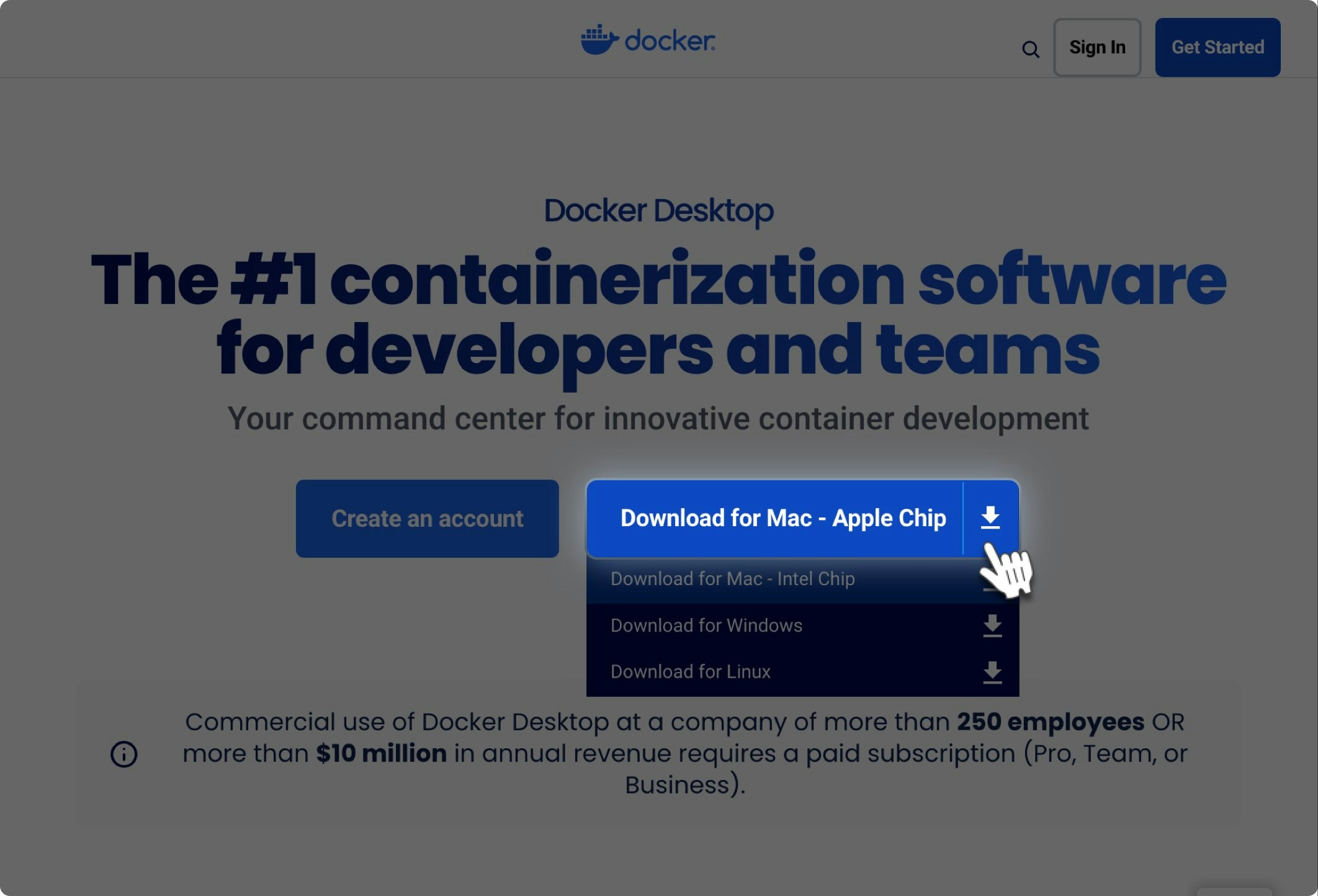
To resolve this issue, ensure you download and install the appropriate Docker version. For macOS, Docker provides two options: "**Apple Chip**" and "**Intel Chip**."
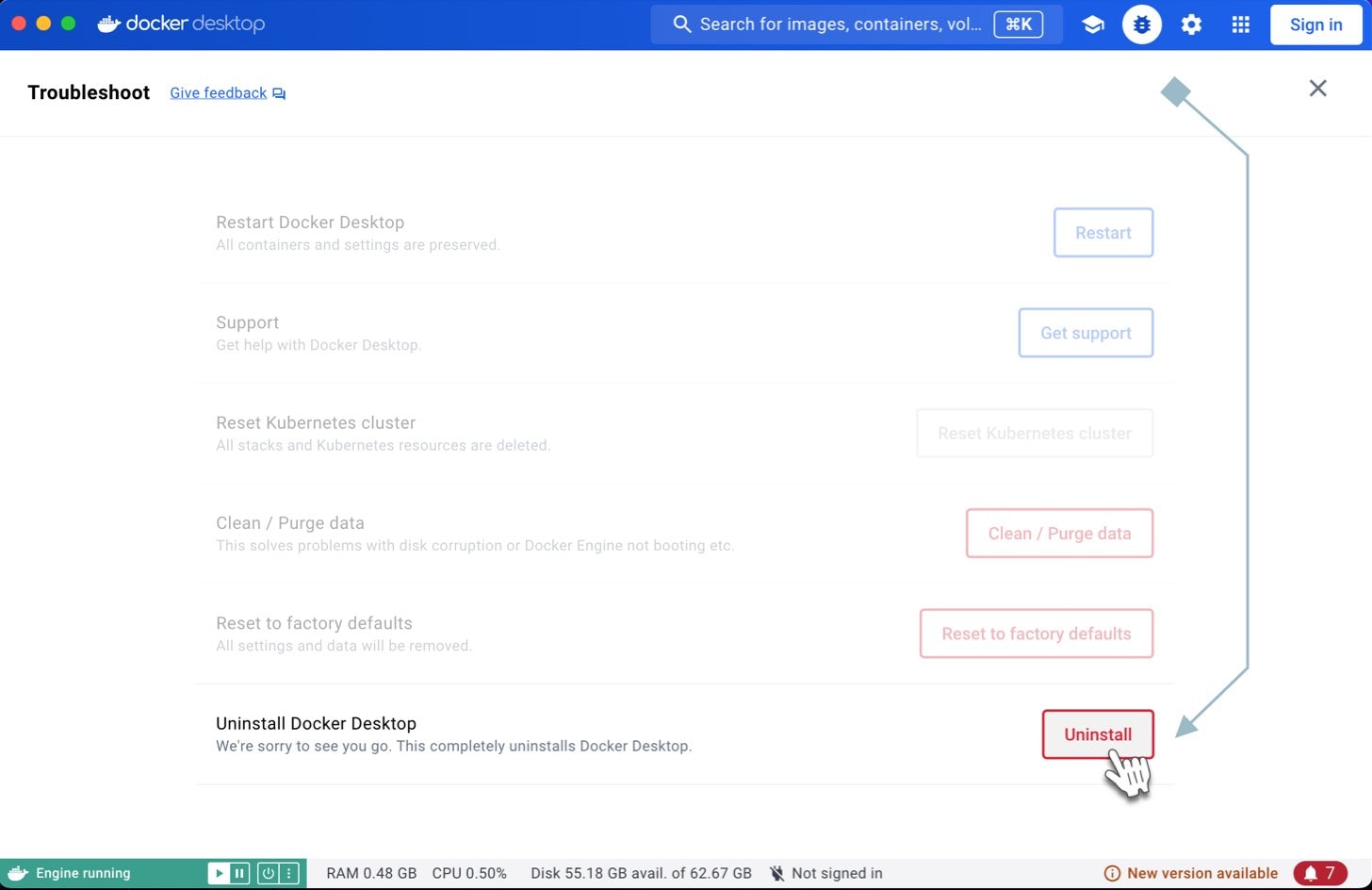
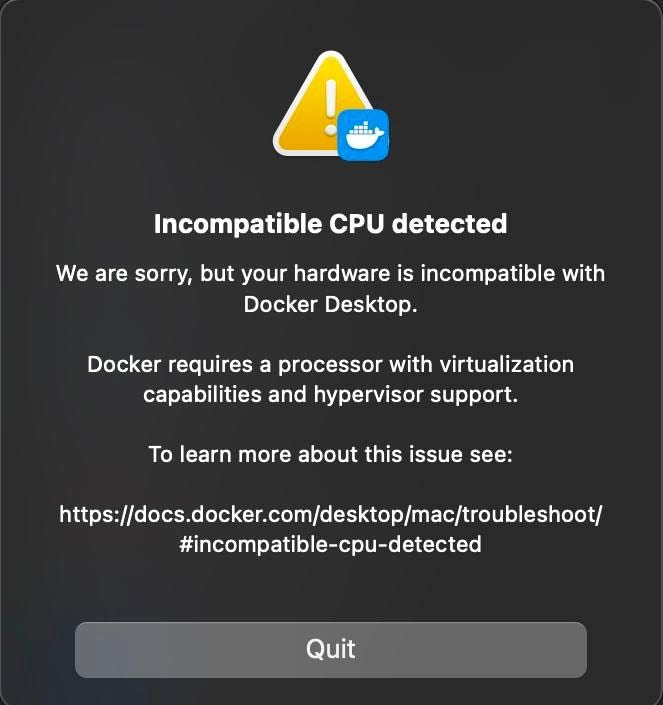 First, you need to remove the previous version for the **Intel chip**. Click on the **Bug** icon to open Docker Settings, then click **Uninstall**.
 After that, visit the Docker website and download and install the version designed for the "**Apple Chip**." Downloading the Docker file may take some time, so please be patient..
 ### Waiting for IO Containers to Start
Ensure the "**Use containerd for storing and pulling images**" option is **disabled** in Docker's General Settings.
### Waiting for IO Containers to Start
Ensure the "**Use containerd for storing and pulling images**" option is **disabled** in Docker's General Settings.
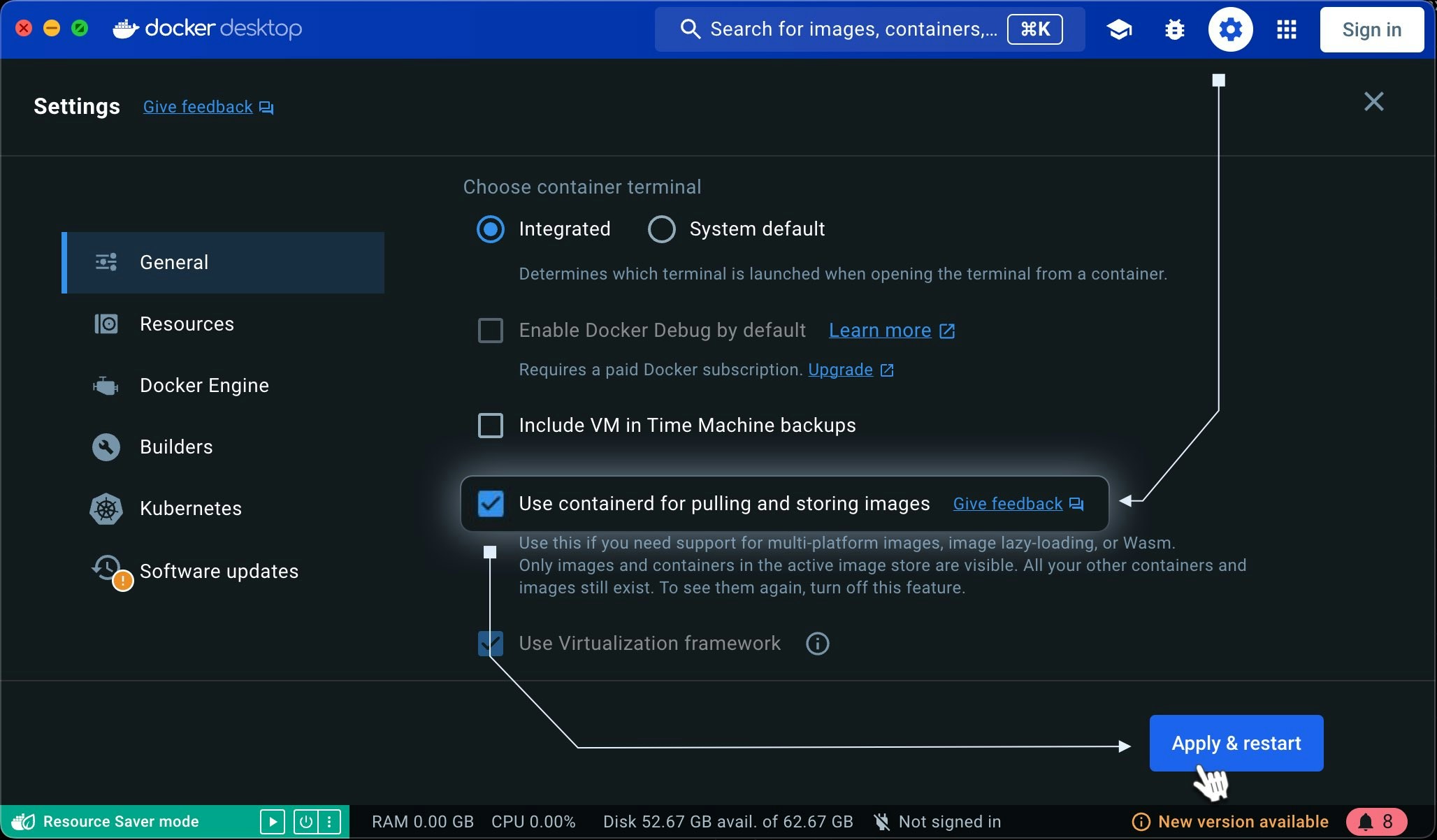 Containerd may interfere with Docker’s default image management, **so it’s recommended to turn it off**.
## Worker Disconnecting Despite Containers Running
If your Worker disconnects even when the containers are up, try the following checks:
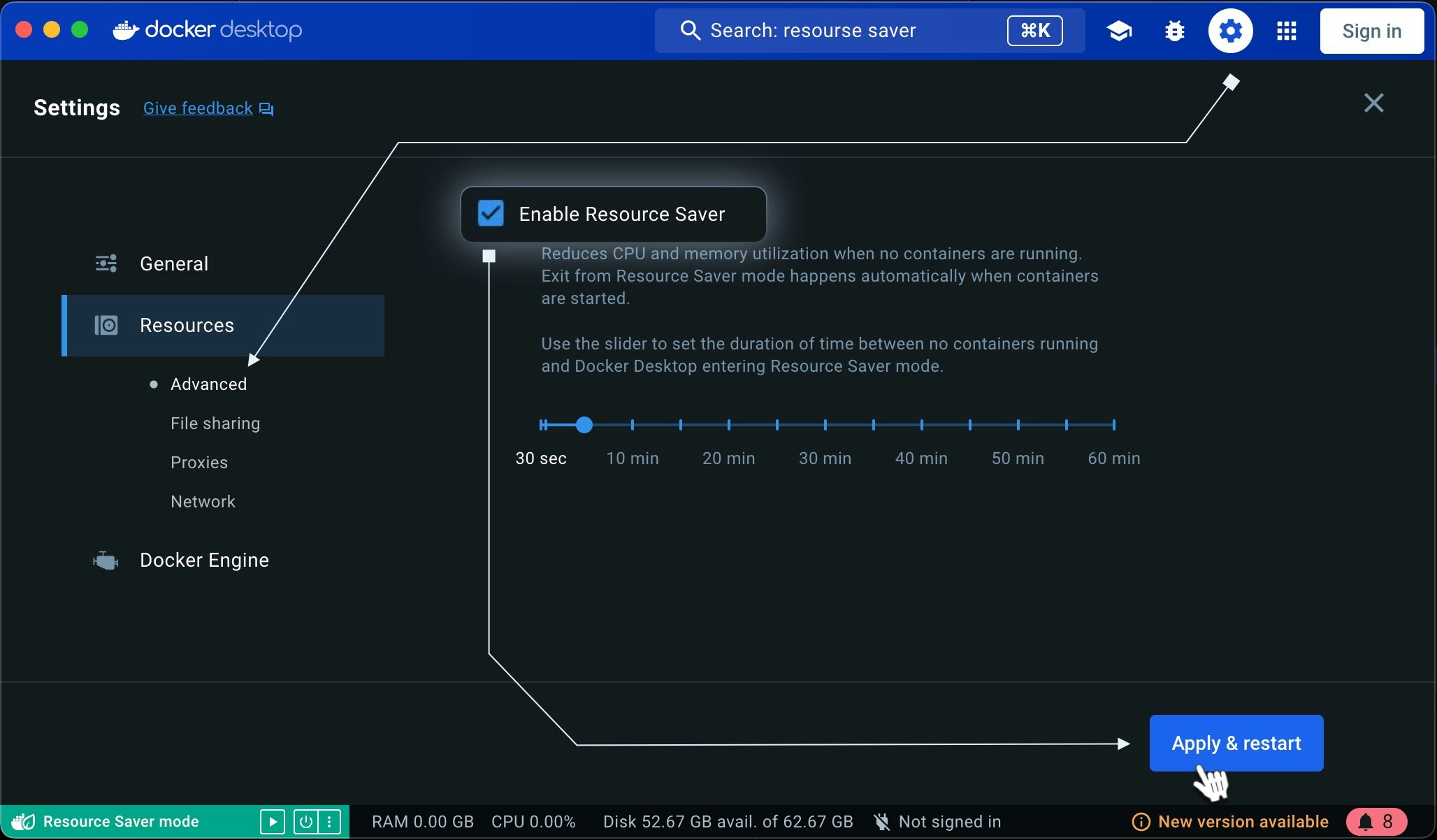
1. Ensure resources aren't limited. Make sure Docker's "**Resource Saver**" feature is **disabled** in the **Resources tab** of **Docker Settings**.
Containerd may interfere with Docker’s default image management, **so it’s recommended to turn it off**.
## Worker Disconnecting Despite Containers Running
If your Worker disconnects even when the containers are up, try the following checks:
1. Ensure resources aren't limited. Make sure Docker's "**Resource Saver**" feature is **disabled** in the **Resources tab** of **Docker Settings**.
 2. Check Docker Resource Allocation. Ensure Docker is allocated the minimum required **CPU**, **RAM**, and **disk space**. System requirements are as follows:
* **Memory**: At least 512MB of free RAM (2GB is recommended)
* **Disk**: Adequate storage to run the Docker containers you intend to use
* **GPU**: You can check the currently supported [GPUs](/guides/workers/supported-devices).
## Connectivity Tier Not Displaying Correctly
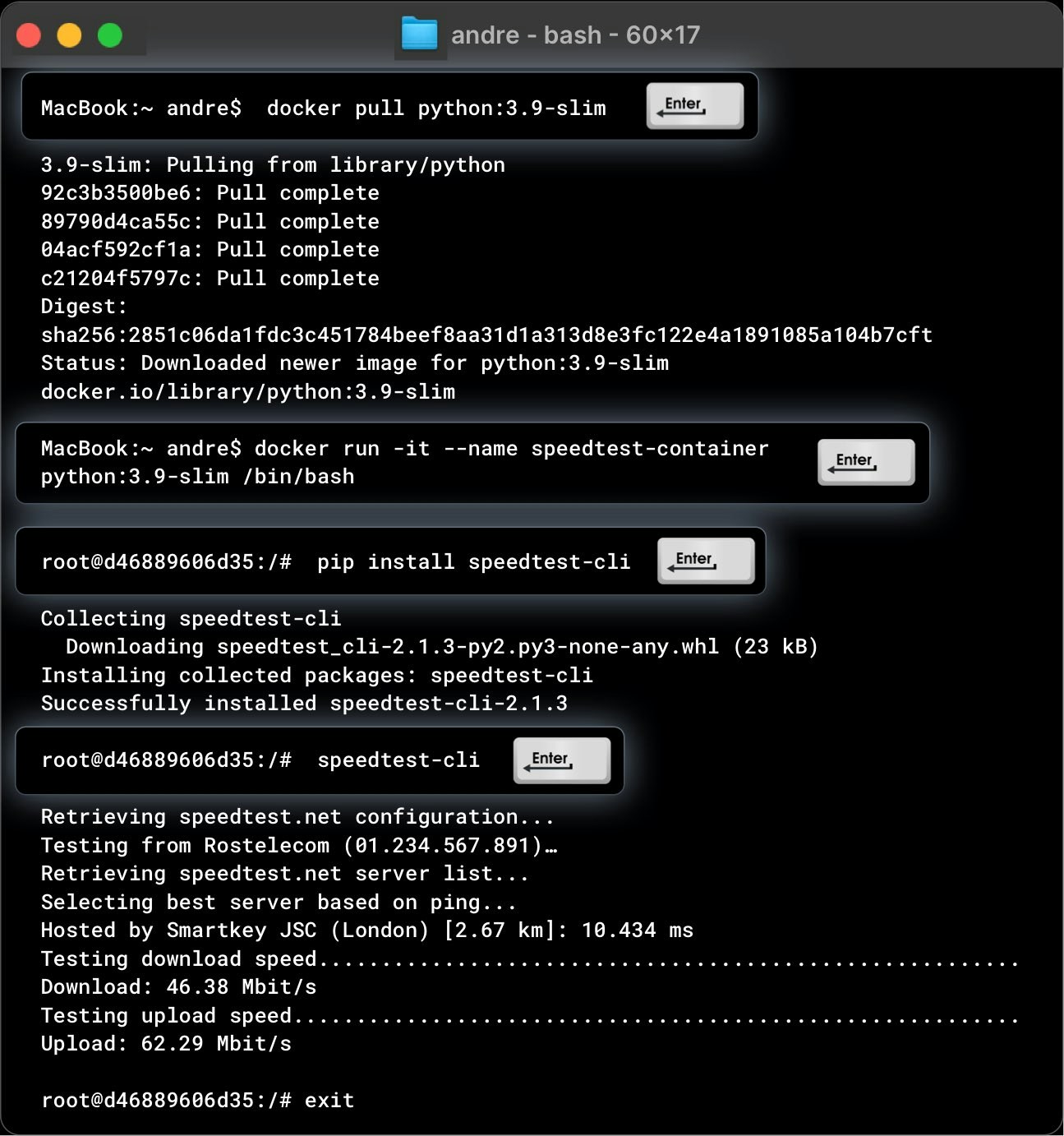
To troubleshoot connectivity tier issues, users can test network speeds via a sample Docker container. Here's how:
1. Pull the Python 3.9 Slim container:
```
docker pull python:3.9-slim
```
2. Run the container:
```
docker run -it --name speedtest-container python:3.9-slim /bin/bash
```
3. Install the speedtest tool:
```
pip install speedtest-cli
```
4. Test the network speed:
```
speedtest-cli
```
2. Check Docker Resource Allocation. Ensure Docker is allocated the minimum required **CPU**, **RAM**, and **disk space**. System requirements are as follows:
* **Memory**: At least 512MB of free RAM (2GB is recommended)
* **Disk**: Adequate storage to run the Docker containers you intend to use
* **GPU**: You can check the currently supported [GPUs](/guides/workers/supported-devices).
## Connectivity Tier Not Displaying Correctly
To troubleshoot connectivity tier issues, users can test network speeds via a sample Docker container. Here's how:
1. Pull the Python 3.9 Slim container:
```
docker pull python:3.9-slim
```
2. Run the container:
```
docker run -it --name speedtest-container python:3.9-slim /bin/bash
```
3. Install the speedtest tool:
```
pip install speedtest-cli
```
4. Test the network speed:
```
speedtest-cli
```
 We recommend running similar speed tests periodically within your containers to monitor connectivity performance. You can also guide users on how to perform these tests at regular intervals or during specific instances for troubleshooting.