> ## Documentation Index
> Fetch the complete documentation index at: https://io.net/docs/llms.txt
> Use this file to discover all available pages before exploring further.
# Troubleshoot Docker (Linux & Windows)
> This document provides troubleshooting steps for your GPU-enabled Docker platform setup on both Linux and Windows operating systems. It provides a structured approach to ensure the platform is correctly configured and functioning.
### Table of Contents
* [Install Docker on Linux](#install-docker-on-linux)
* [Verify Installation](#verify-installation)
* [Troubleshoot Docker Installation](#troubleshoot-docker-installation)
* [Stop the Platform](#stop-the-platform)
* [Restart the Platform](#restart-the-platform)
* [Windows Uptime](#windows-uptime)
* [Fixing the "Docker Desktop - Unexpected WSL error" in Windows](#fixing-the-“docker-desktop-unexpected-wsl-error”-in-windows)
* [Additional Guides](#additional-guides)
### Install Docker on Linux
Recommended Installation Steps:
* Run the setup from the website for the first time. This step installs the necessary drivers.
* After the first installation, reboot your Linux system.
* Perform the setup process a second time, which installs Docker.
### Verify Installation
Confirmation Command:
* To confirm that your setup is working correctly, run:
```Text Terminal Command theme={null}
docker run --gpus all nvidia/cuda:11.0.3-base-ubuntu18.04 nvidia-smi
```
* The output should resemble the information displayed by `nvidia-smi`.
* This command verifies that Docker is correctly utilizing your GPU.
### Troubleshoot Docker Installation
Use the Reset Script (end of page):
* If the confirmation command fails, use the reset\_drivers\_and\_docker script:
```Text Terminal Command theme={null}
chmod +x reset_drivers_and_docker.sh
./reset_drivers_and_docker.sh
```
* After running the script, restart your device.
* Rerun the setup from the website. After an automatic restart, rerun the setup to complete the installation.
* If the confirmation command continues to fail, seek assistance on the community support channel.
### Stop the Platform
Run the command below in PowerShell to stop the platform and remove all containers for Windows.
```Text Terminal Command theme={null}
docker ps -a -q | ForEach { docker rm $\_ }
```
Run the command below in Terminal to stop and remove all containers for Linux.
```Text Terminal Command theme={null}
sudo docker stop $(sudo docker ps -a -q); sudo docker rm $(sudo docker ps -q)
```
### Restart the Platform
* Reboot your computer or server.
* After you reboot the device, restart the platform.
* Rerun the same command provided on the website during the initial setup. It resembles `docker run -d`.
> ❗️ Verify that you're not running two instances of io-worker-vc.
Run the command below to verify that you're running a single instance of io-worker-vc.
```Text Terminal Command theme={null}
docker ps
```
If there are 2 containers running the same image io-worker-vc , the platform fails. The output resembles the sample below:
```
~$ docker ps
CONTAINER ID IMAGE COMMAND CREATED STATUS PORTS NAMES
87b1b066bdfa ionetcontainers/io-worker-monitor "tail -f /dev/null" 3 seconds ago Up 2 seconds agitated_hawking
7033c1b8feba ionetcontainers/io-worker-vc "sudo -E /srp/invoke…" 8 seconds ago Up 8 seconds friendly_ritchie
67f699e12c2e ionetcontainers/io-worker-vc "sudo -E /srp/invoke…" 10 seconds ago Up 8 seconds sleepy_feynman
```
#### How to fix this?
Run the stop all docker containers (check troubleshooting guide) and run the (docker run -d ...) command from website only ONCE to run the platform normally.
### Windows Uptime
Follow the instructions below if you experience inconsistent uptime on Windows.
To ensure that the DHCP lease time on the router is set to a duration exceeding 24 hours, access the group policy editor within the Windows operating system. Proceed by enabling the specified settings in the following sequence:
1. Open the group policy editor and go to **Computer Configuration**.
2. In Computer Configuration, find the **Administrative Templates** section.
3. Under **Administrative Templates**, go to **System**.
4. In the **System** menu, choose **Power Management**.
5. Access the **Sleep Settings** subsection within **Power Management**.
6. Activate both **Allow network connectivity during connected-standby (on battery)** and **Allow network connectivity during connected-standby (plugged in)** options.
Adjust the settings above to meet your requirements.
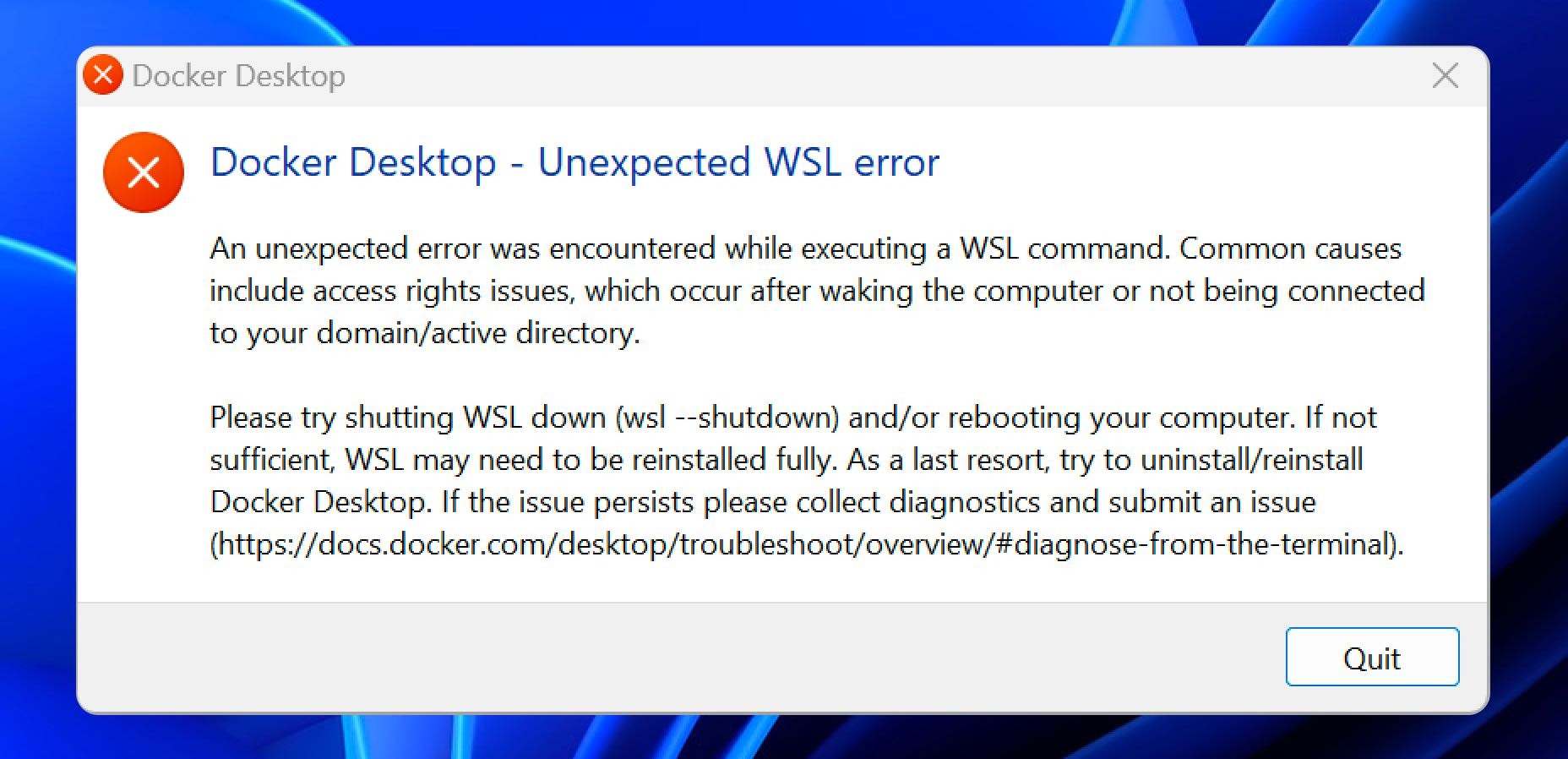
### Fixing the "Docker Desktop - Unexpected WSL error" in Windows
This error occurs when you haven't updated to the latest version of WSL or haven't enabled the Hyper-V feature. Follow these steps:
 1. **Check and Update WSL Version**: First, ensure that you’re running the latest version of WSL. You can check your current WSL version by opening a command prompt and typing:
```
wsl --version
```
If you find that you’re not on WSL 2, you can set the default version to 2 by executing:
```
wsl --set-default-version 2
```
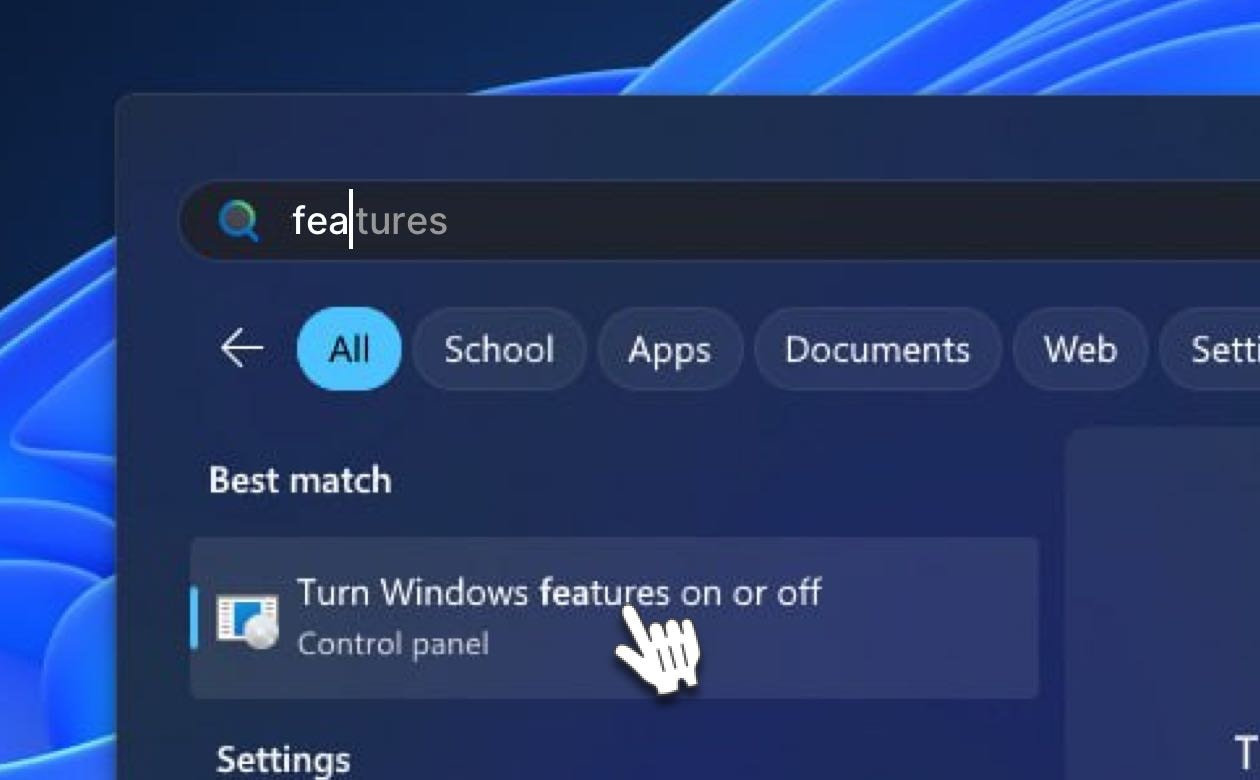
2. **Enable Hyper-V Feature**: Hyper-V is a virtualization technology tool that needs to be enabled in Windows. To check if Hyper-V is enabled, you can use the Windows Features dialog via Search:
1. **Check and Update WSL Version**: First, ensure that you’re running the latest version of WSL. You can check your current WSL version by opening a command prompt and typing:
```
wsl --version
```
If you find that you’re not on WSL 2, you can set the default version to 2 by executing:
```
wsl --set-default-version 2
```
2. **Enable Hyper-V Feature**: Hyper-V is a virtualization technology tool that needs to be enabled in Windows. To check if Hyper-V is enabled, you can use the Windows Features dialog via Search:
 In the **Windows Features** dialog, scroll down and check **Windows Hypervisor Platform**, then click OK.:
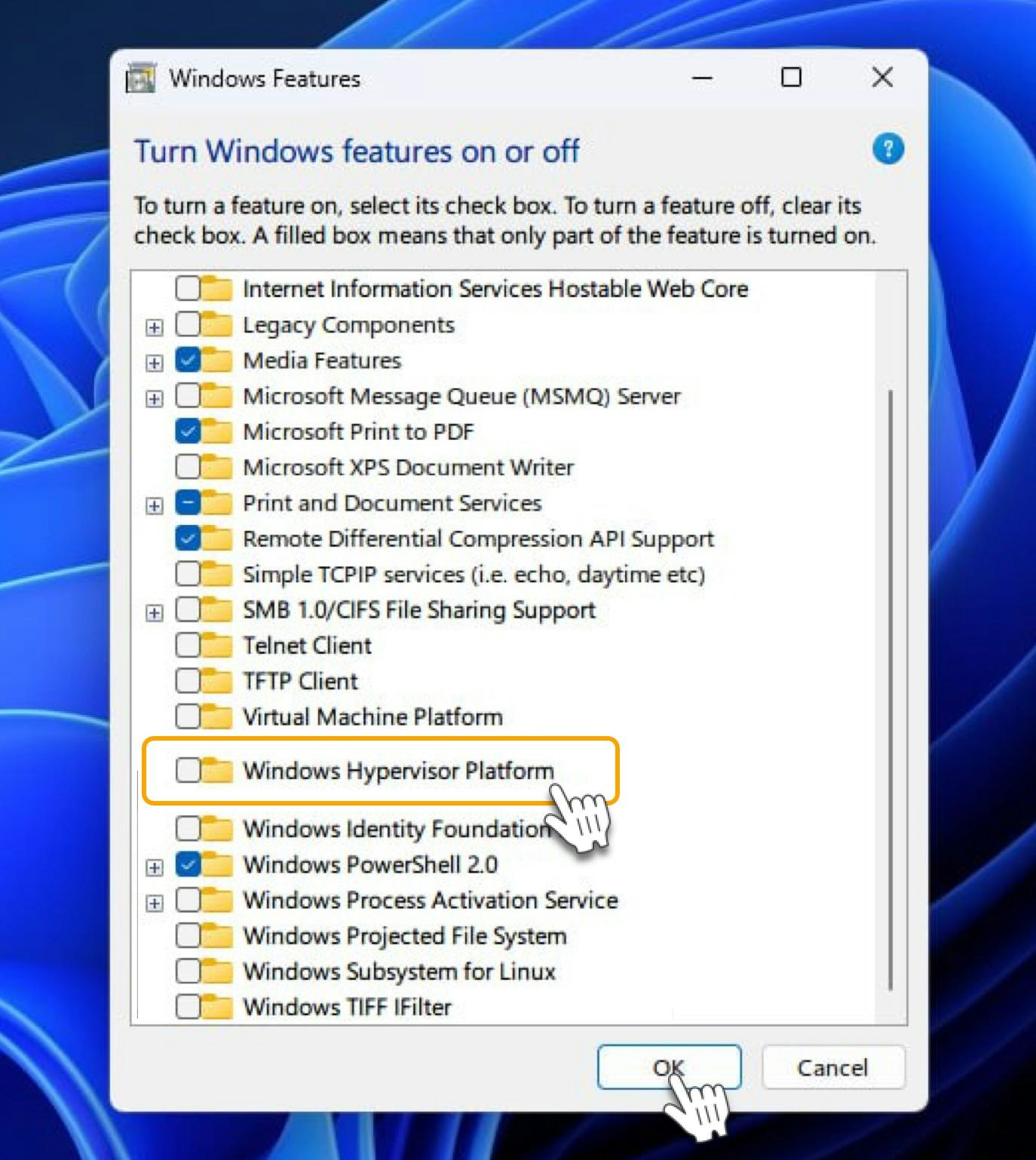 After installing **Windows Hypervisor Platform**, the problem should disappear.
### Additional Guides
Expose the ports below to ensure platform stability for Linux and Windows:
* TCP: 443, 25061, 5432, 80
* UDP: 80, 443, 41641, 3478
Ensure that these ports are open and accessible to enable smooth operation of the platform.
#### How can I verify that program has started successfully?
* When running the following command on PowerShell (Windows) or Terminal (Linux), **you should always have 2 Docker containers running**:
```Text Terminal Command theme={null}
docker ps
```
* If there are no containers or only one container running after running the docker run\*\* -d ... command\*\* from the website:
* Stop the platform using the command provided in the guide above.
* Restart the platform using the command from the website again.
#### reset\_drivers\_and\_docker.sh :
Create a new file called `reset_drivers_and_docker.sh`, and copy paste the code snippet below:
```reset_drivers_and_docker.sh theme={null}
#!/bin/bash
# Stop all running Docker containers
echo "Stopping all running Docker containers..."
docker stop $(docker ps -a -q)
# Remove all Docker containers
echo "Removing all Docker containers..."
docker rm $(docker ps -a -q)
# Remove all Docker images
echo "Removing all Docker images..."
docker rmi $(docker images -q)
# Uninstall Docker Engine, CLI, and Containerd
echo "Uninstalling Docker..."
sudo apt-get purge -y docker-engine docker docker.io docker-ce docker-ce-cli containerd containerd.io
# Remove Docker's storage volumes
echo "Removing Docker storage volumes..."
sudo rm -rf /var/lib/docker
sudo rm -rf /var/lib/containerd
# Remove Docker group
sudo groupdel docker
# Remove Docker's configuration files
echo "Removing Docker configuration files..."
sudo rm -rf /etc/docker
# Remove any leftover Docker files
sudo find / -name '*docker*' -exec rm -rf {} \;
# Uninstall NVIDIA Docker
echo "Uninstalling NVIDIA Docker..."
sudo apt-get purge -y nvidia-docker
# Uninstall NVIDIA drivers
echo "Uninstalling NVIDIA drivers..."
sudo apt-get purge -y '*nvidia*'
# Remove any remaining NVIDIA directories
sudo rm -rf /usr/local/nvidia/
# Update the package lists
echo "Updating package lists..."
sudo apt-get update
# Autoremove any orphaned packages
echo "Removing unused packages and cleaning up..."
sudo apt-get autoremove -y
sudo apt-get autoclean
# Rebuild the kernel module dependencies
echo "Rebuilding kernel module dependencies..."
sudo depmod
# Inform the user that a reboot is required
echo "Uninstallation complete. Please reboot your system."
```
After installing **Windows Hypervisor Platform**, the problem should disappear.
### Additional Guides
Expose the ports below to ensure platform stability for Linux and Windows:
* TCP: 443, 25061, 5432, 80
* UDP: 80, 443, 41641, 3478
Ensure that these ports are open and accessible to enable smooth operation of the platform.
#### How can I verify that program has started successfully?
* When running the following command on PowerShell (Windows) or Terminal (Linux), **you should always have 2 Docker containers running**:
```Text Terminal Command theme={null}
docker ps
```
* If there are no containers or only one container running after running the docker run\*\* -d ... command\*\* from the website:
* Stop the platform using the command provided in the guide above.
* Restart the platform using the command from the website again.
#### reset\_drivers\_and\_docker.sh :
Create a new file called `reset_drivers_and_docker.sh`, and copy paste the code snippet below:
```reset_drivers_and_docker.sh theme={null}
#!/bin/bash
# Stop all running Docker containers
echo "Stopping all running Docker containers..."
docker stop $(docker ps -a -q)
# Remove all Docker containers
echo "Removing all Docker containers..."
docker rm $(docker ps -a -q)
# Remove all Docker images
echo "Removing all Docker images..."
docker rmi $(docker images -q)
# Uninstall Docker Engine, CLI, and Containerd
echo "Uninstalling Docker..."
sudo apt-get purge -y docker-engine docker docker.io docker-ce docker-ce-cli containerd containerd.io
# Remove Docker's storage volumes
echo "Removing Docker storage volumes..."
sudo rm -rf /var/lib/docker
sudo rm -rf /var/lib/containerd
# Remove Docker group
sudo groupdel docker
# Remove Docker's configuration files
echo "Removing Docker configuration files..."
sudo rm -rf /etc/docker
# Remove any leftover Docker files
sudo find / -name '*docker*' -exec rm -rf {} \;
# Uninstall NVIDIA Docker
echo "Uninstalling NVIDIA Docker..."
sudo apt-get purge -y nvidia-docker
# Uninstall NVIDIA drivers
echo "Uninstalling NVIDIA drivers..."
sudo apt-get purge -y '*nvidia*'
# Remove any remaining NVIDIA directories
sudo rm -rf /usr/local/nvidia/
# Update the package lists
echo "Updating package lists..."
sudo apt-get update
# Autoremove any orphaned packages
echo "Removing unused packages and cleaning up..."
sudo apt-get autoremove -y
sudo apt-get autoclean
# Rebuild the kernel module dependencies
echo "Rebuilding kernel module dependencies..."
sudo depmod
# Inform the user that a reboot is required
echo "Uninstallation complete. Please reboot your system."
```