> ## Documentation Index
> Fetch the complete documentation index at: https://io.net/docs/llms.txt
> Use this file to discover all available pages before exploring further.
# Windows: Troubleshoot Worker
> Here we've compiled essential use cases for working with Workers.
### How to Resolve Unsupported GPU Issues?
If a user's supported GPU is listed as unsupported on the website, they should verify their NVIDIA driver configuration. Often, when a Docker container running **nvidia-smi** fails, the backend receives this information and marks the GPU as unsupported.
To check the configuration, running the following command should provide the correct output:
```
docker run --gpus all nvidia/cuda:11.0.3-base-ubuntu18.04 nvidia-smi
```
### Regulate RAM Usage
 Create a file called **.wslconfig** to restrict the resources used by **WSL2** (Windows Subsystem for Linux). Follow the steps below to create it:
* **Open File Explorer** and navigate to your user's home directory (usually **`C:/Users/`**).
* **Create a new text file** in your home directory and name it **.wslconfig**.
* **Edit the .wslconfig File:** Right-click on the newly created **.wslconfig** file and open it with a text editor such as Notepad.
* **Add the following configuration parameters** to limit memory (set values according to your preference):
```
[wsl2]
memory=4GB # Limits the VM memory in WSL between 2 and 4 GB
processors=2 # Limits the number of processors to 2
swap=8GB # Sets the swap size to 8 GB
```
* **Save the file and restart your computer**. If the worker does not connect automatically, you may [need to install it again](/guides/workers/troubleshoot-worker-general#how-can-i-pause-or-reset-a-worker-if-it-has-disconnection-issues).
### Computer Time Synchronization Issue
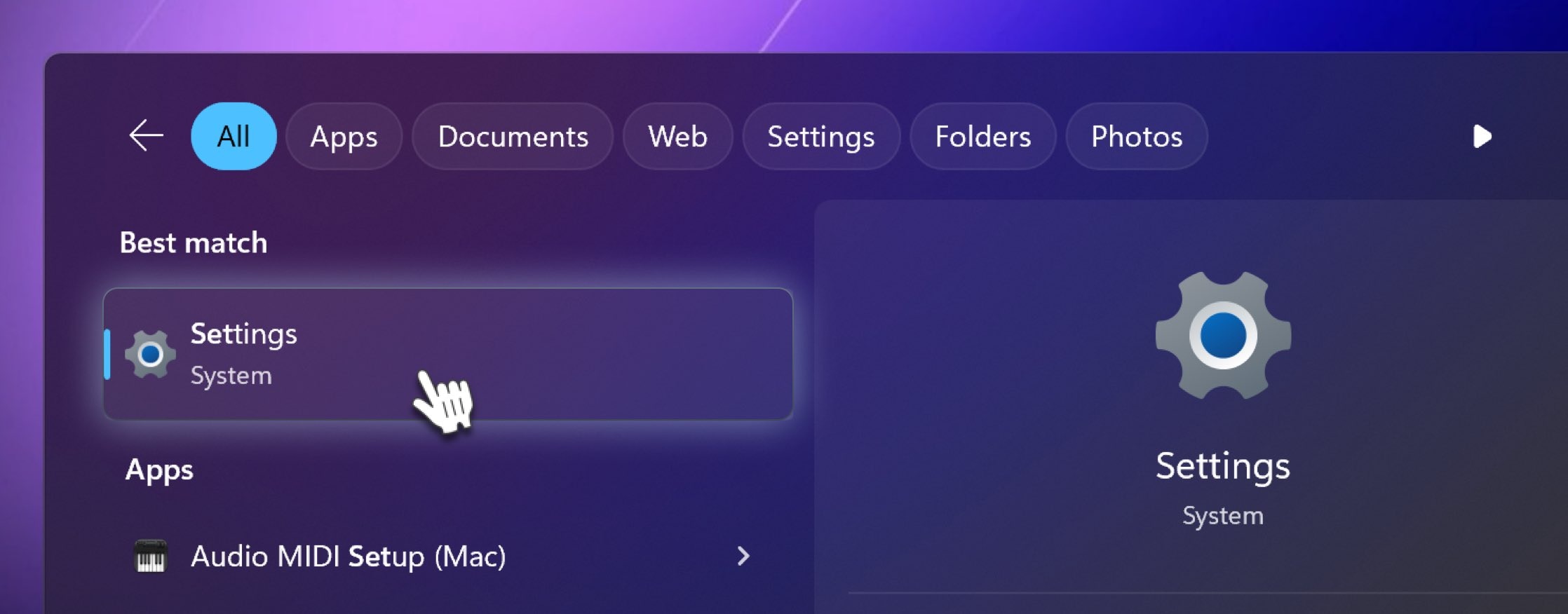
Make sure your computer's time is synchronized with the server. If it's not, the IO binary won't work properly. Click the **Start Menu** and open the **Settings** app.
Create a file called **.wslconfig** to restrict the resources used by **WSL2** (Windows Subsystem for Linux). Follow the steps below to create it:
* **Open File Explorer** and navigate to your user's home directory (usually **`C:/Users/`**).
* **Create a new text file** in your home directory and name it **.wslconfig**.
* **Edit the .wslconfig File:** Right-click on the newly created **.wslconfig** file and open it with a text editor such as Notepad.
* **Add the following configuration parameters** to limit memory (set values according to your preference):
```
[wsl2]
memory=4GB # Limits the VM memory in WSL between 2 and 4 GB
processors=2 # Limits the number of processors to 2
swap=8GB # Sets the swap size to 8 GB
```
* **Save the file and restart your computer**. If the worker does not connect automatically, you may [need to install it again](/guides/workers/troubleshoot-worker-general#how-can-i-pause-or-reset-a-worker-if-it-has-disconnection-issues).
### Computer Time Synchronization Issue
Make sure your computer's time is synchronized with the server. If it's not, the IO binary won't work properly. Click the **Start Menu** and open the **Settings** app.
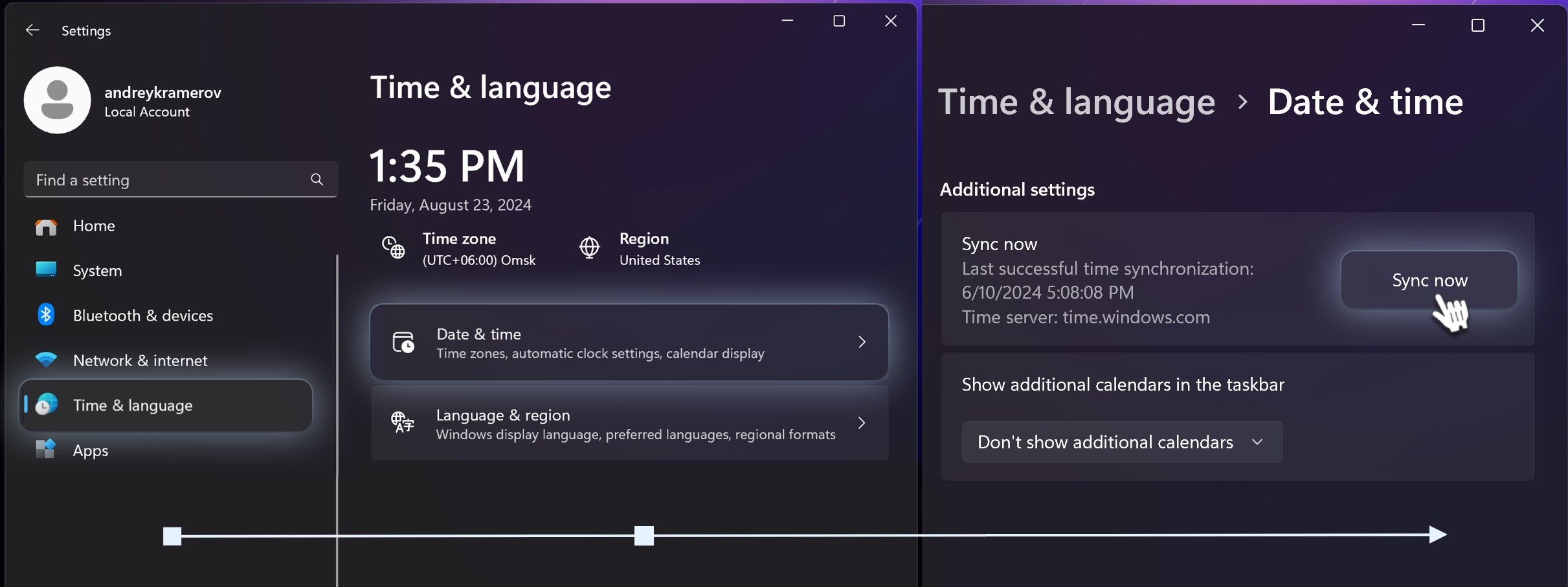
 Next, in the **Settings** app, go to **Time & Language** and select **Date & Time**. Then, under **Additional settings,** click the **Sync now** button to synchronize your computer's time with the server.
 ### Common Issue: Container CPU Dropping to 0
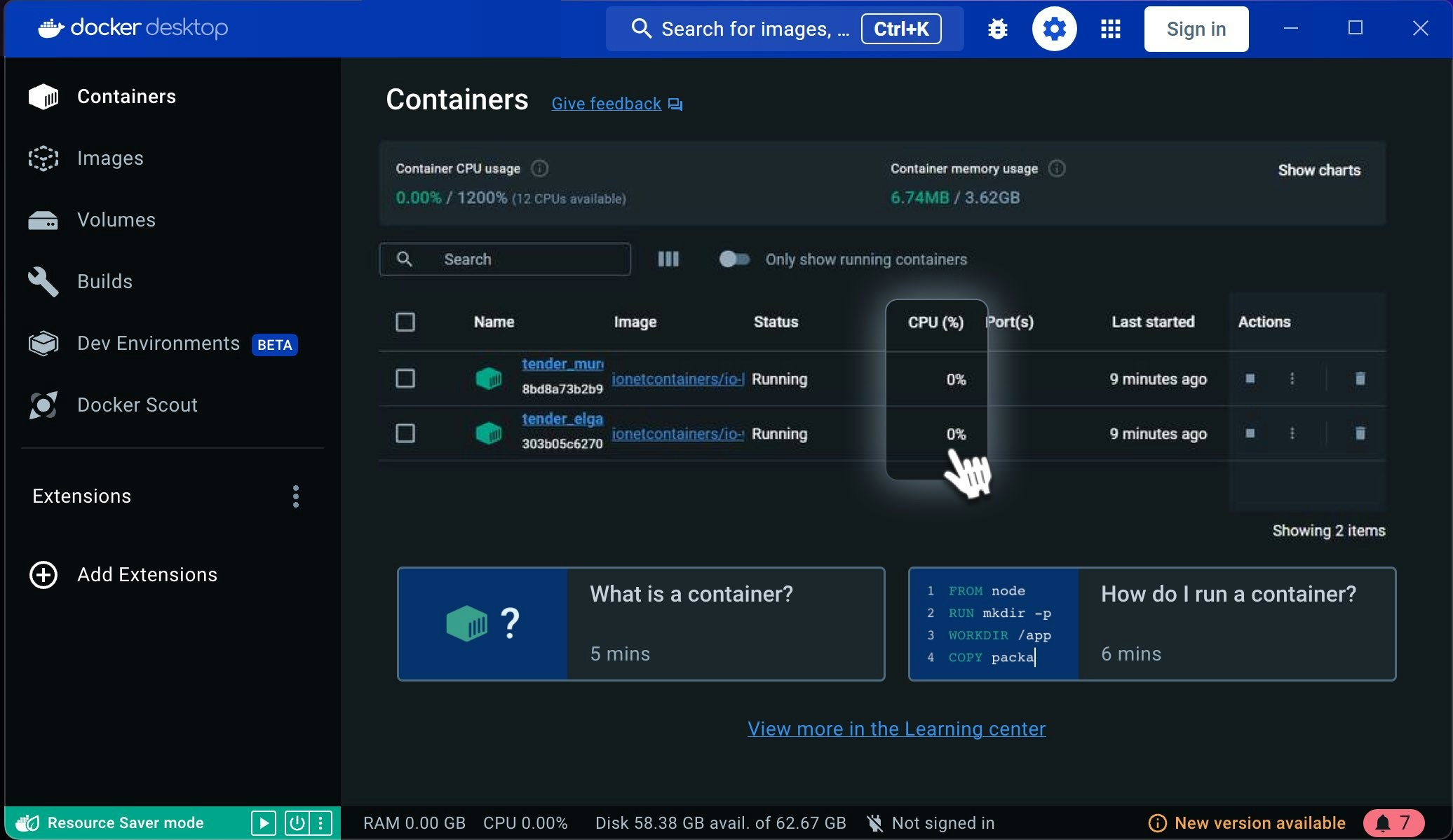
A common issue that many users encounter is the CPU of the container dropping to 0.
This problem is often due to missing necessary software components. For instance, on Windows, you need to ensure [CUDA](/guides/workers/cuda-toolkit-optional) and [WSL2](/guides/workers/install-docker-on-windows#3-configure-wsl2-to-integrate-with-docker-settings) are installed.
If you still encounter this issue after installing all the necessary software components, try deleting the containers and images, then **re-run** the worker command and wait. You may need to repeat this process 3 or 4 times until they function normally. If the issue persists after these steps, it may indicate a system-level error.
### Common Issue: Container CPU Dropping to 0
A common issue that many users encounter is the CPU of the container dropping to 0.
This problem is often due to missing necessary software components. For instance, on Windows, you need to ensure [CUDA](/guides/workers/cuda-toolkit-optional) and [WSL2](/guides/workers/install-docker-on-windows#3-configure-wsl2-to-integrate-with-docker-settings) are installed.
If you still encounter this issue after installing all the necessary software components, try deleting the containers and images, then **re-run** the worker command and wait. You may need to repeat this process 3 or 4 times until they function normally. If the issue persists after these steps, it may indicate a system-level error.
 For general questions about the Worker, no matter the operating system, check [here](https://docs.io.net/docs/troubleshoot-worker-general)
Feel free to [check our knowledge base](/guides/workers/troubleshoot-worker-general) for answers, and if you still need help, don’t hesitate to open a support ticket!
For general questions about the Worker, no matter the operating system, check [here](https://docs.io.net/docs/troubleshoot-worker-general)
Feel free to [check our knowledge base](/guides/workers/troubleshoot-worker-general) for answers, and if you still need help, don’t hesitate to open a support ticket!