> ## Documentation Index
> Fetch the complete documentation index at: https://io.net/docs/llms.txt
> Use this file to discover all available pages before exploring further.
# Getting Started with VMaaS API
The **Virtual Machine as a Service (VMaaS) APIs** lets you programmatically deploy and manage virtual machines on io.net Cloud. Unlike CaaS (Containers as a Service), VMaaS provides full VM instances with CPU, GPU, memory, and storage resources — ideal for long-running workloads, custom environments, or GPU-intensive tasks.
## Generate an API key
You can obtain an API key for io.net Cloud to use VMaaS in two ways:
1. From the web interface.
2. By using a two-step process (first generate a JWT token, then request the API key using curl).
### Option 1: Generate an API Key via Web Interface
IO Clouds APIs authenticate requests using API keys. You can [generate API keys from your user](https://ai.io.net/ai/api-keys) account.\
**Note: When generating an API key, make sure to specify the associated IO Cloud project.**
Always treat your API key as a secret. Do not share it or expose it in client-side code (e.g., browsers or mobile apps). Instead, store it securely in an environment variable or a key management service in your backend server.
### Option 2: Generate an API Key Using a JWT Token
#### Step 1: Get a JWT Token
io.net APIs are built around [RESTful](https://en.wikipedia.org/wiki/REST) principles. You can use io.net APIs to gain insight into different elements of the network.
To use [io.net](http://io.net) APIs, you must provide a JWT token in the header of your request.
Follow the instructions below to generate a token:
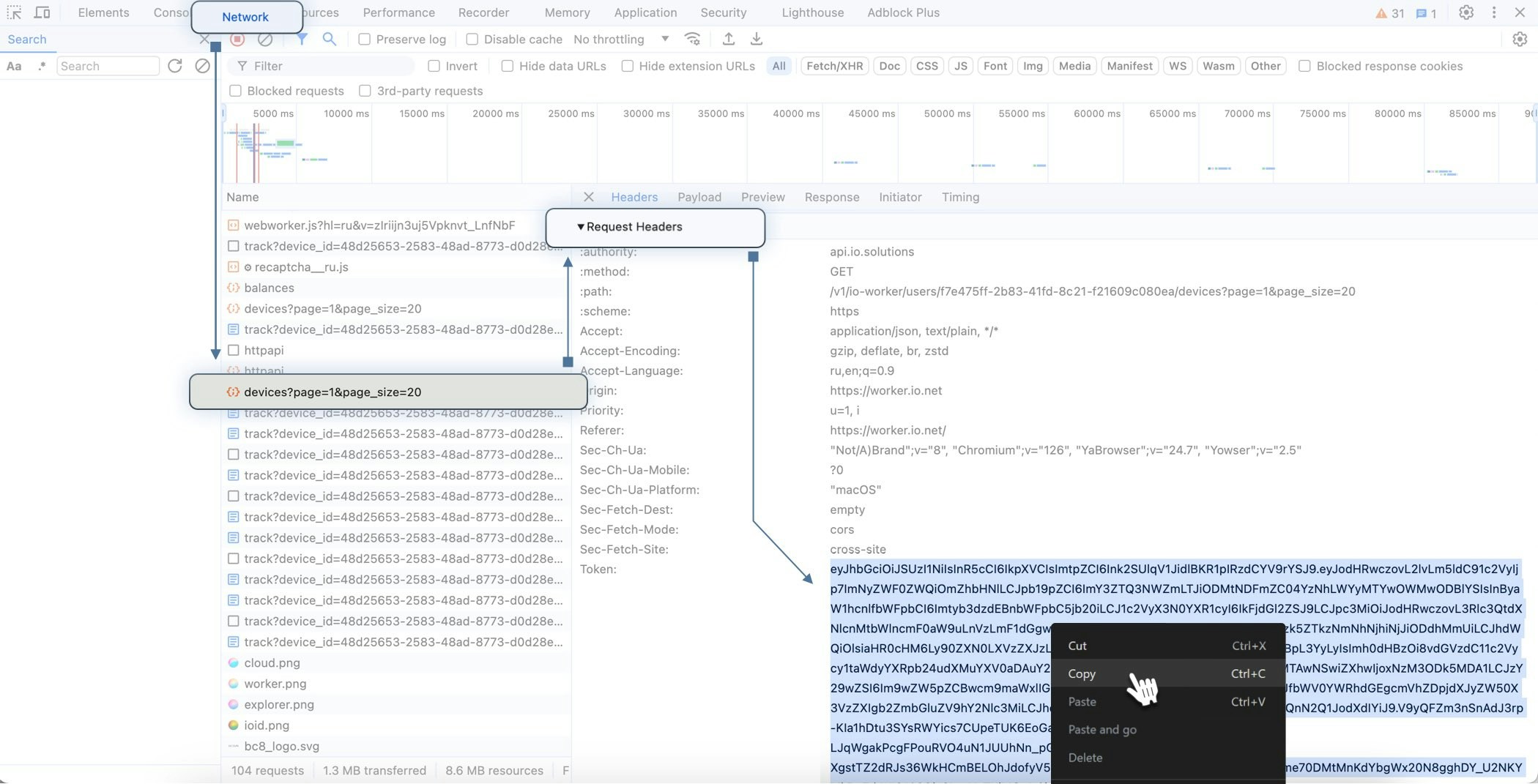
1. Go to **io.net** > **IO ID** > **IO Clouds** tab.
2. In the UI, right-click and select **Inspect**.
3. In the Inspect tool, click **Network**.
4. Refresh the **IO Clouds** page.
5. In the list of elements, click **Devices**.
6. Scroll down to the **Request Headers** section.
7. Copy and store the token.
This token is valid for 21 days.
 #### Step 2. Generate an API Key via `curl`
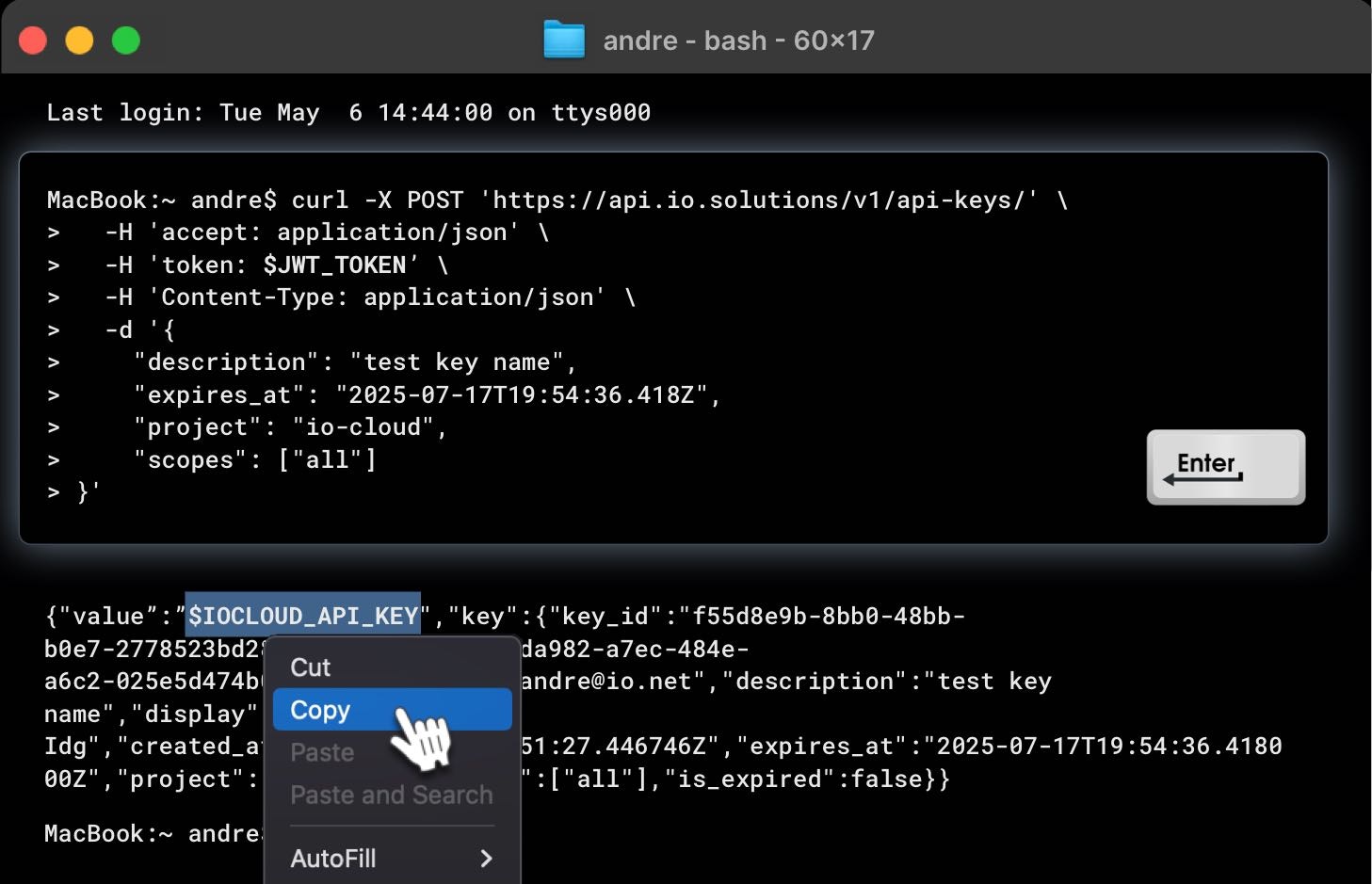
Use the **JWT token** to request your API key:
```curl theme={null}
curl -X POST 'https://api.io.solutions/v1/api-keys/' \
-H 'accept: application/json' \
-H 'token: $JWT_TOKEN' \
-H 'Content-Type: application/json' \
-d '{
"description": "API Key Name",
"expires_at": "2025-07-17T19:54:36.418Z",
"project": "io-cloud",
"scopes": ["all"]
}'
```
Use the returned key with the `X-API-KEY` header in your requests.
Always treat your API key as a secret. Do not share it or expose it in client-side code (e.g., browsers or mobile apps). Instead, store it securely in an environment variable or a key management service in your backend server.
#### Step 2. Generate an API Key via `curl`
Use the **JWT token** to request your API key:
```curl theme={null}
curl -X POST 'https://api.io.solutions/v1/api-keys/' \
-H 'accept: application/json' \
-H 'token: $JWT_TOKEN' \
-H 'Content-Type: application/json' \
-d '{
"description": "API Key Name",
"expires_at": "2025-07-17T19:54:36.418Z",
"project": "io-cloud",
"scopes": ["all"]
}'
```
Use the returned key with the `X-API-KEY` header in your requests.
Always treat your API key as a secret. Do not share it or expose it in client-side code (e.g., browsers or mobile apps). Instead, store it securely in an environment variable or a key management service in your backend server.
 ## Making requests
Accessing APIs requires IO credits. Make sure you have sufficient IO credits before using any API endpoint.
Contact support or visit the IO Credits documentation page for more details.
Include the API key in an `Authorization` HTTP header for all API requests:
```
Authorization: X-API-KEY $IOCLOUD_API_KEY
```
Replace `$IOCLOUD_API_KEY` with your **API key**.
### Example: Deploy VMs
The following `curl` command demonstrates how to deploy VMs in IO Cloud.\
Make sure to include your `x-api-key` header and, if needed, adjust the query parameters such as `status`, `page`, or `page_size`.:
```curl theme={null}
curl -X POST "https://api.io.solutions/enterprise/v1/io-cloud/vmaas/deploy?page=0&page_size=10&status=running" \
-H "accept: application/json" \
-H "Content-Type: application/json" \
-H "x-api-key: YOUR_API_KEY_HERE" \
-d '{
"name": "test-deployment",
"hardware_quantity": 2,
"hardware_name": "NVIDIA A100",
"region": "us-east-1"
}'
```
This request should return a similar response:
```json theme={null}
{
"data": {
"deployments": [
{
"id": "3fa85f64-5717-4562-b3fc-2c963f66afa6",
"status": "running",
"name": "test-deployment",
"completed_percent": 75,
"hardware_quantity": 2,
"brand_name": "NVIDIA",
"hardware_name": "A100",
"compute_minutes_served": 120,
"compute_minutes_remaining": 240
}
],
"total": 1,
"statuses": ["running"]
}
}
```
## Making requests
Accessing APIs requires IO credits. Make sure you have sufficient IO credits before using any API endpoint.
Contact support or visit the IO Credits documentation page for more details.
Include the API key in an `Authorization` HTTP header for all API requests:
```
Authorization: X-API-KEY $IOCLOUD_API_KEY
```
Replace `$IOCLOUD_API_KEY` with your **API key**.
### Example: Deploy VMs
The following `curl` command demonstrates how to deploy VMs in IO Cloud.\
Make sure to include your `x-api-key` header and, if needed, adjust the query parameters such as `status`, `page`, or `page_size`.:
```curl theme={null}
curl -X POST "https://api.io.solutions/enterprise/v1/io-cloud/vmaas/deploy?page=0&page_size=10&status=running" \
-H "accept: application/json" \
-H "Content-Type: application/json" \
-H "x-api-key: YOUR_API_KEY_HERE" \
-d '{
"name": "test-deployment",
"hardware_quantity": 2,
"hardware_name": "NVIDIA A100",
"region": "us-east-1"
}'
```
This request should return a similar response:
```json theme={null}
{
"data": {
"deployments": [
{
"id": "3fa85f64-5717-4562-b3fc-2c963f66afa6",
"status": "running",
"name": "test-deployment",
"completed_percent": 75,
"hardware_quantity": 2,
"brand_name": "NVIDIA",
"hardware_name": "A100",
"compute_minutes_served": 120,
"compute_minutes_remaining": 240
}
],
"total": 1,
"statuses": ["running"]
}
}
```