The Virtual Machine as a Service (VMaaS) APIs lets you programmatically deploy and manage virtual machines on io.net Cloud. Unlike CaaS (Containers as a Service), VMaaS provides full VM instances with CPU, GPU, memory, and storage resources — ideal for long-running workloads, custom environments, or GPU-intensive tasks.

Generate an API key

You can obtain an API key for io.net Cloud to use VMaaS in two ways:
  1. From the web interface.
  2. By using a two-step process (first generate a JWT token, then request the API key using curl).

Option 1: Generate an API Key via Web Interface

IO Clouds APIs authenticate requests using API keys. You can generate API keys from your user account.
Note: When generating an API key, make sure to specify the associated IO Cloud project.
Always treat your API key as a secret. Do not share it or expose it in client-side code (e.g., browsers or mobile apps). Instead, store it securely in an environment variable or a key management service in your backend server.

Option 2: Generate an API Key Using a JWT Token

Step 1: Get a JWT Token

io.net APIs are built around RESTful principles. You can use io.net APIs to gain insight into different elements of the network. To use io.net APIs, you must provide a JWT token in the header of your request. Follow the instructions below to generate a token:
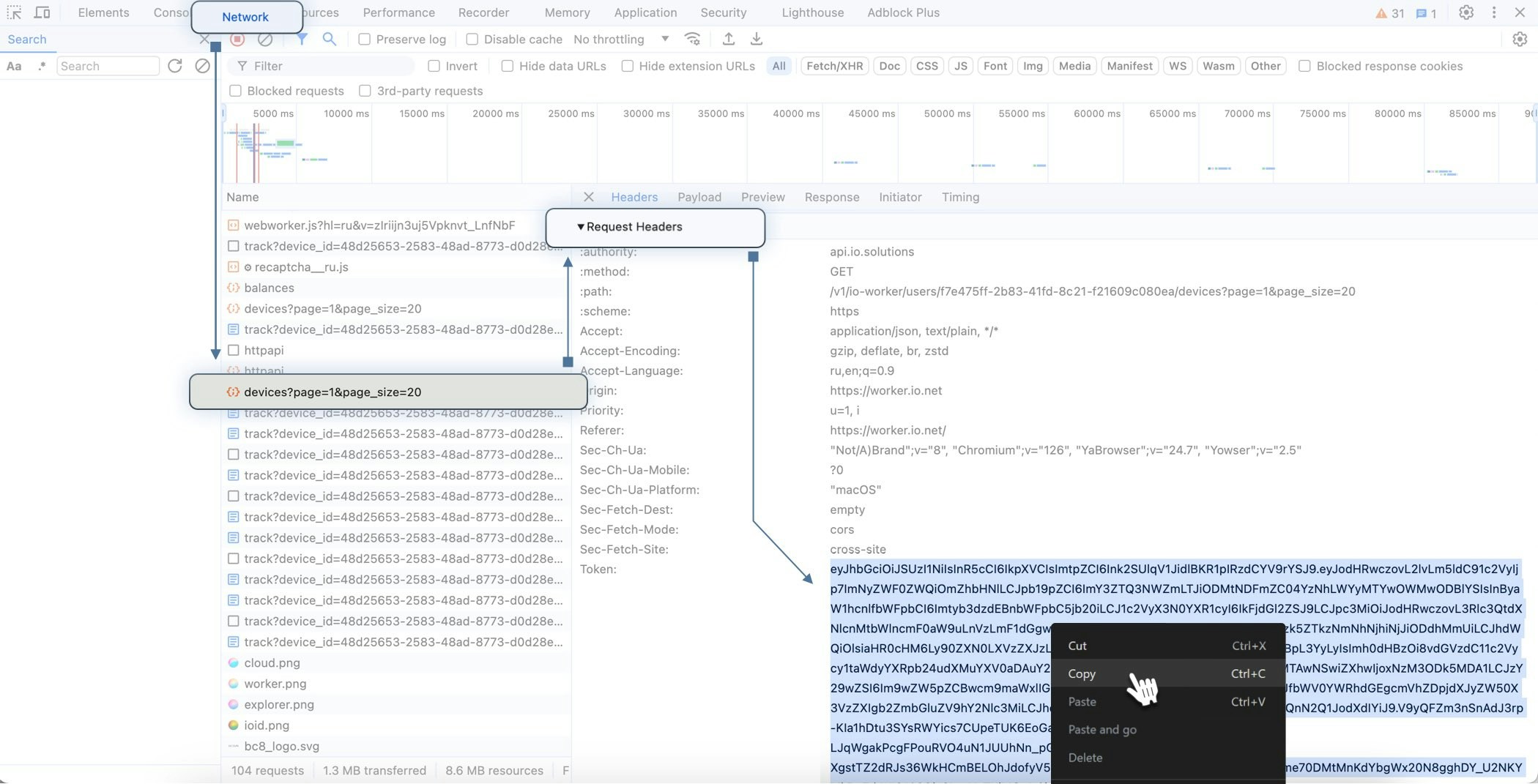
  1. Go to io.net > IO ID > IO Clouds tab.
  2. In the UI, right-click and select Inspect.
  3. In the Inspect tool, click Network.
  4. Refresh the IO Clouds page.
  5. In the list of elements, click Devices.
  6. Scroll down to the Request Headers section.
  7. Copy and store the token.
This token is valid for 21 days.
Vmaas1 Jp

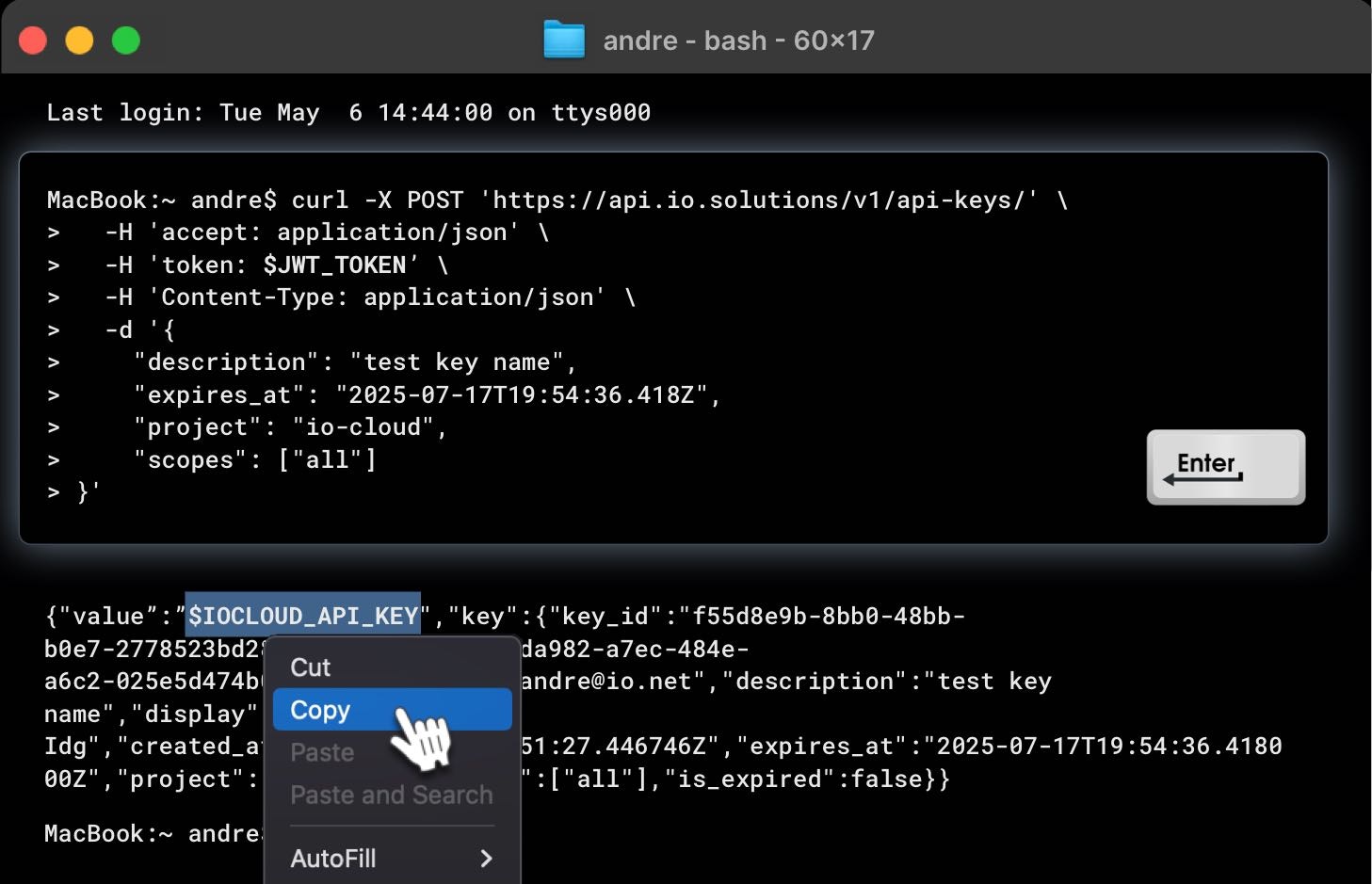
Step 2. Generate an API Key via curl

Use the JWT token to request your API key:
curl -X POST 'https://api.io.solutions/v1/api-keys/' \
  -H 'accept: application/json' \
  -H 'token: $JWT_TOKEN' \
  -H 'Content-Type: application/json' \
  -d '{
    "description": "API Key Name",
    "expires_at": "2025-07-17T19:54:36.418Z",
    "project": "io-cloud",
    "scopes": ["all"]
}'
Use the returned key with the X-API-KEY header in your requests.
Always treat your API key as a secret. Do not share it or expose it in client-side code (e.g., browsers or mobile apps). Instead, store it securely in an environment variable or a key management service in your backend server.
Vmaas2 Jp

Making requests

Accessing APIs requires IO credits. Make sure you have sufficient IO credits before using any API endpoint.Contact support or visit the IO Credits documentation page for more details.
Include the API key in an Authorization HTTP header for all API requests:
Authorization: X-API-KEY $IOCLOUD_API_KEY
Replace $IOCLOUD_API_KEY with your API key.

Example: Deploy VMs

The following curl command demonstrates how to deploy VMs in IO Cloud.
Make sure to include your x-api-key header and, if needed, adjust the query parameters such as status, page, or page_size.:
curl -X POST "https://api.io.solutions/enterprise/v1/io-cloud/vmaas/deploy?page=0&page_size=10&status=running" \
  -H "accept: application/json" \
  -H "Content-Type: application/json" \
  -H "x-api-key: YOUR_API_KEY_HERE" \
  -d '{
    "name": "test-deployment",
    "hardware_quantity": 2,
    "hardware_name": "NVIDIA A100",
    "region": "us-east-1"
  }'
This request should return a similar response:
{
  "data": {
    "deployments": [
      {
        "id": "3fa85f64-5717-4562-b3fc-2c963f66afa6",
        "status": "running",
        "name": "test-deployment",
        "completed_percent": 75,
        "hardware_quantity": 2,
        "brand_name": "NVIDIA",
        "hardware_name": "A100",
        "compute_minutes_served": 120,
        "compute_minutes_remaining": 240
      }
    ],
    "total": 1,
    "statuses": ["running"]
  }
}